2. Modelling
Parameter assignment
The parameters available for prediction are:
- Rock Quality Designation (RQD)
- The log of the Q' value
- Index Test Results
- RMR89
- The log of (RQD/Jn) i.e. degree of jointing
- The log of (Jr/Ja) i.e. joint friction
- Fracture frequency
The 3D view will display the results for whichever parameter is selected.
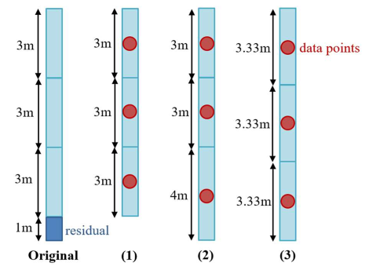
The interpolation processes use points in space which represent the borehole core measurements based on a Borehole Division approach. Each borehole is divided into intervals as per the Interval Length control, with the remaining core length either:
- Discarded so that all intervals are of the same length
- Added to the immediately previous interval
- Evenly distributed to the other core intervals
Adjust the Interval Length and select the remainder process, and a point will be assigned to the midpoint of each core interval with the measured parameters of that core piece assigned.
Interpolation
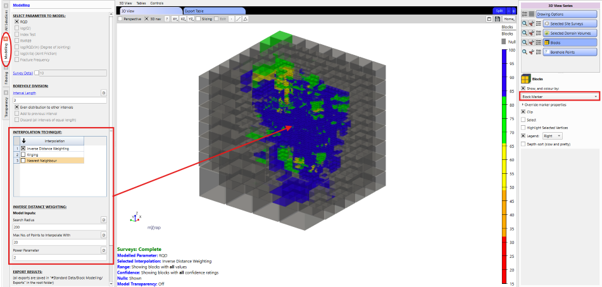
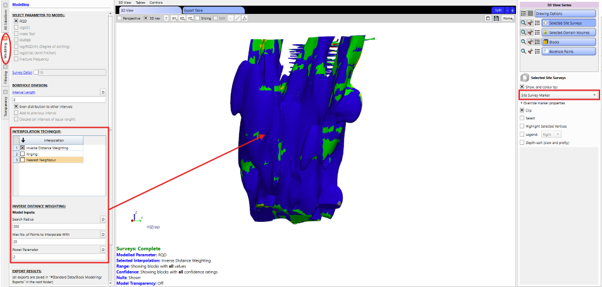
There are three available interpolation approaches in the model:
- Nearest Neighbour: Each block is assigned the value of the nearest known borehole reading within an adjustable Search Radius.
- Inverse Distance Weighting: Each block is assigned the weighted average of a defined Max. No. of Points to Interpolate With within an adjustable Search Radius. The weights are inversely related to the distances between the block centroid and the interpolated borehole readings. This can also be modified by entering an alternative distance-decay Power Parameter.
- Kriging: Each block is assigned the weighted average of a defined Max. No. of Points to Interpolate With within an adjustable Search Radius. The weights are decided using an Ordinary Kriging algorithm which fits the borehole readings to a spatial model (spherical or exponential) and solves the covariance matrix. For more information on the kriging algorithm, see: How Kriging Works | ArcGIS Pro documentation.
The results from interpolation can be viewed in the 3D view either in the block configuration or as reflected onto the site surveys. The Survey Detail control refines this for greater detail (particularly on volumes) when desired. The footer also contains a status update of the survey loading progress and the kriging progress when this is the selected interpolation technique.
The results for all parameters for the selected interpolation can be viewed directly in the Export Table window. Only data points within the same domain as each block are used in its parameter interpolation.
Confidence
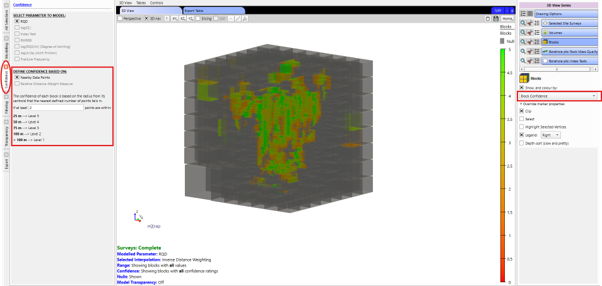
A confidence measure is also assigned to each block based on either the Nearby Data Points or a Relative Distance-Weight Measure. The Nearby Data Points option will assign each block a level of confidence (5 being highest, 1 being lowest) defined by whether or not a defined number of points falls within the following radii of the block centroid:
- 25 m (Level 5)
- 50 m (Level 4)
- 75 m (Level 3)
- 100 m (Level 2)
- > 100 m (Level 1)
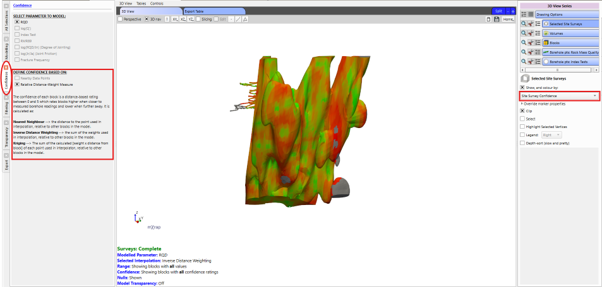
The Relative Distance-Weight Measure option will assign a distance-based rating between 0 and 5 which rates blocks higher when closer to clusters of measured borehole data and lower when further away. This will return a unique confidence depending on if nearest neighbour, inverse distance weighting or kriging is used. The nearest neighbour confidence is dependent on the distance to the point used in interpolation, inverse distance weighting confidence is dependent on the sum of the weights used in interpolation, and kriging confidence is dependent on the sum of the calculated [weight x distance from block] of each point used in interpolation, relative to other blocks in the model.
Filtering
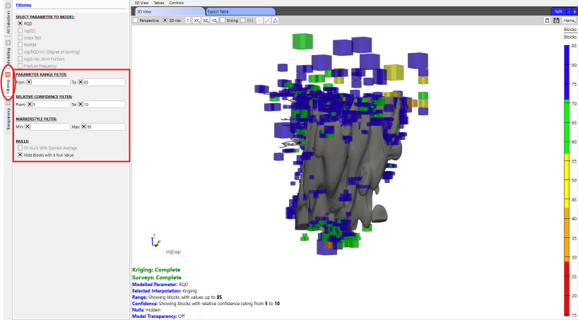
There are four filtering options available in a panel view in the modelling window:
- Parameter Range Filter: Entering a range From and/or To will only show the blocks whose interpolated parameter value falls within these boundaries in the 3D view.
- Confidence Filter: Entering a range From and/or To will only show the blocks whose relative confidence rating falls within these boundaries in the 3D view.
- Marker-style Filter: The current marker will be updated to have the entered Min and Max values.
- Nulls: Turning on the Fill Nulls with Domain Average will fill all null blocks with the average parameter value of the domain that each block lies in. Turning on the Hide Blocks with a Null Value will hide the blocks who have not been assigned a parameter value in interpolation due to a lack of borehole data within the defined Search Radius.
Transparency
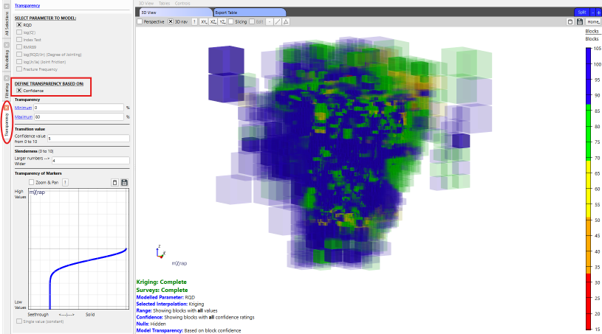
In the transparency panel, select if the block transparency should be defined based on either a single fixed value between 0 and 100% or a confidence function. The confidence function is based on the Minimum Transparency, Maximum Transparency, Transition Value and Slenderness controls.
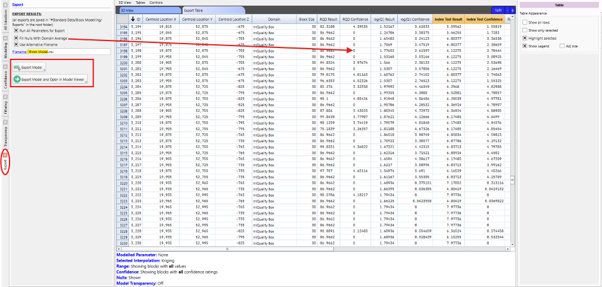
Export Results
The Export Table window contains a table with each block centroid’s location, size, domain and parameter predictions. When inverse distance weighting and nearest neighbour are the chosen methods of interpolation, this will include the results for all parameters and their corresponding confidence ratings. When kriging is the chosen method of interpolation, only the result and confidence for the selected parameter is calculated. Check the Run All Parameters for Export control to calculate the results for the remaining parameters prior to export if desired (note, this could take some time).
The export table may contain null rows due to a lack of borehole data within the defined Search Radius. Select Fill Nulls with Domain Average to fill all null rows in the table (and blocks in the 3D view) with the measured average of each parameter across the domain that the block lies in. These are given a confidence rating of 0.
Click the ‘Export Model’ button to automatically save the Export Table as a csv to
#Standard Data/Block Modelling/Exports in the mine site root folder with the filename
Block Model_[Interpolation Type]_yyyy-mm-dd_hh.mm.ss.csv. This can also be
automatically opened in the View Existing Block Model window by clicking the "Export
Model and Open in Model Viewer" button. The filename can be personalised by turning on
the Use Alternative Filename control.