Event tags and comments
Overview
mXrap provides two distinct methods for associating text with seismic events:
Event Tags
- Purpose: Categorise events into groups for filtering
- Examples:
suspected blast,damage occurred,suspect location,outlier,likely crusher noise - Functionality: Integrated with event filters for quick show/hide operations
- Display: Visible in the main events table (General Analysis)
Event Comments
- Purpose: Store unique, descriptive text for individual events
- Functionality: No impact on event filtering
- Display: Visible in the main events table (General Analysis)
Managing Imported Tag Meanings
Default Tag Behavior
Your seismic monitoring system may import events with predefined tags:
| Tag | Description | Default State |
|---|---|---|
e | Real seismic events | ON |
n | Noise sources | OFF |
b | Blasting events | OFF |
Tag Meanings
Navigation: General Setup Windows > Event Tag Editor > Imported Tag Meaning
GOOD Tags
- Automatically pass through Quality Filter
attention
Double check before manually setting any imported tag meanings to GOOD as these events will bypass all quality control checks.
OUTLIER Tags
- Filtered out by default
- Manual activation required via 'Imported Tags' panel
- Excluded from standard analysis
BLAST Tags (or Tagged Blasts)
- Filtered out from the events by default. This allows to exclude these non-events from all seismic analysis, which is essential.
- Special feature
- In General Analysis app: Table for Tagged Blasts + 3D series in 3D view + series in Magnitude-Time Chart (They do not appear per default: Turn it ON to see them)
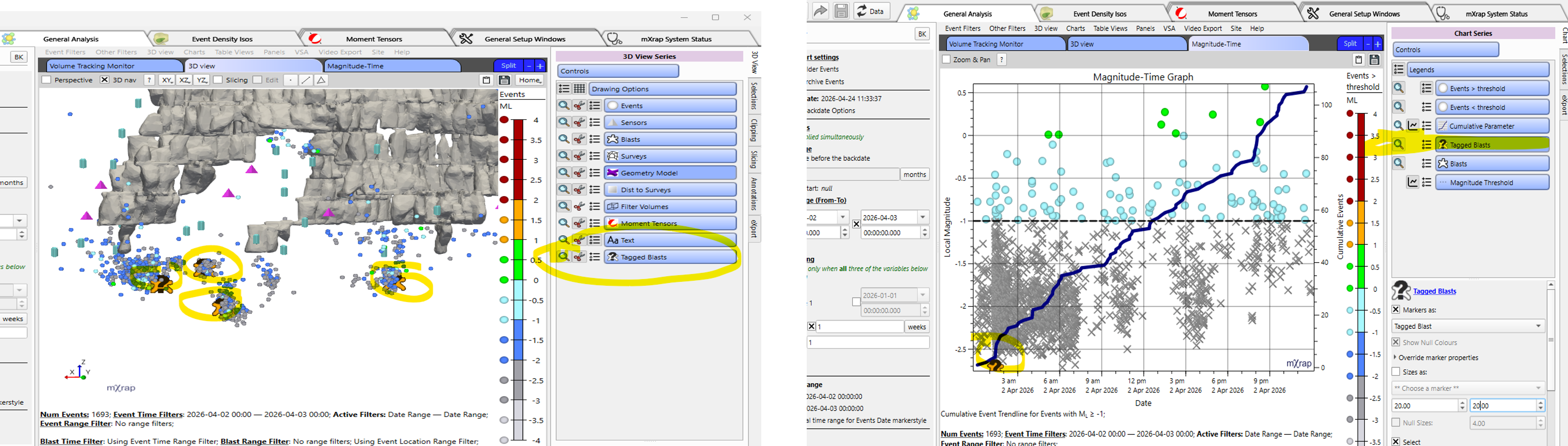
- In Short Term Response Analysis app: Included in 'Blasts From Tags' window
- In System Design app: Investigate tagged blast location and compare them with the blast locations set in the Blasts table to determine potential accuracy or offset issues with the system
- In General Analysis app: Table for Tagged Blasts + 3D series in 3D view + series in Magnitude-Time Chart (They do not appear per default: Turn it ON to see them)
Configuration
-
Add Custom Tags
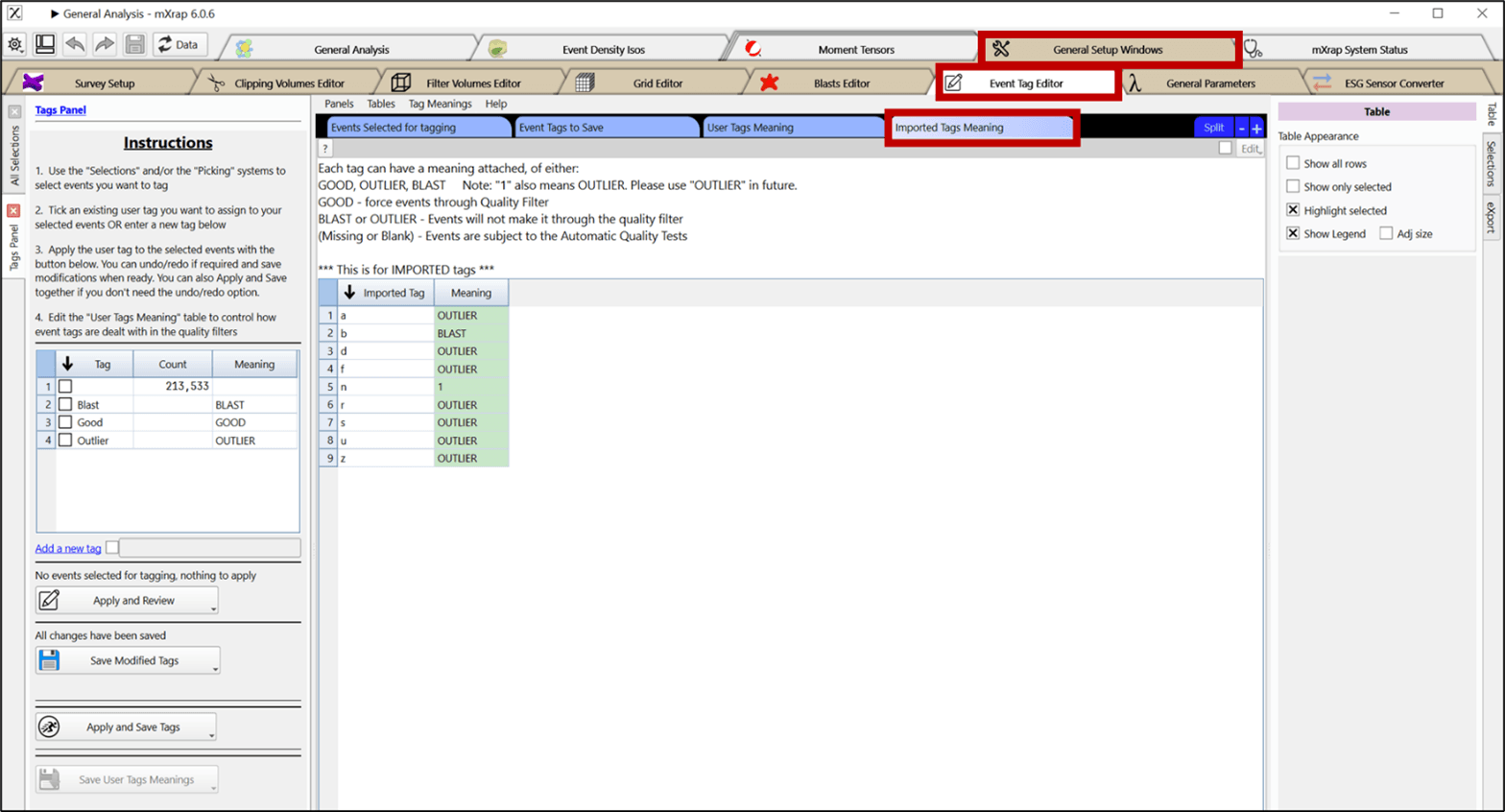
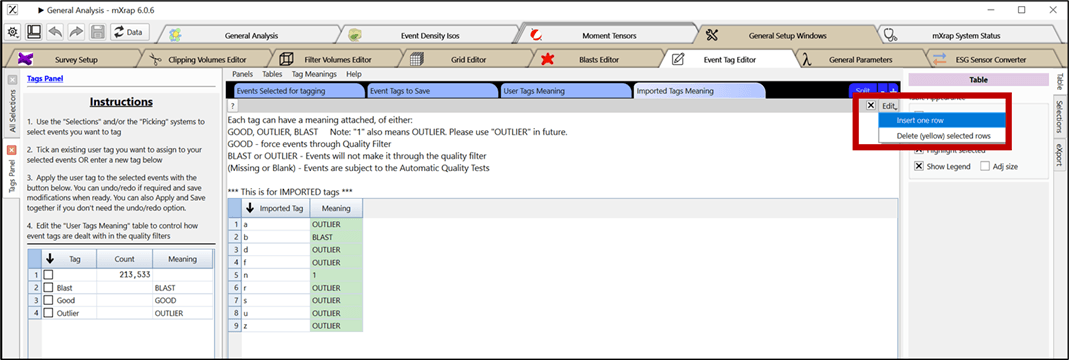
- Create new table rows for each imported tag
- Set meaning to 'OUTLIER' to exclude from default quality filter
-
Verify Existing Tags
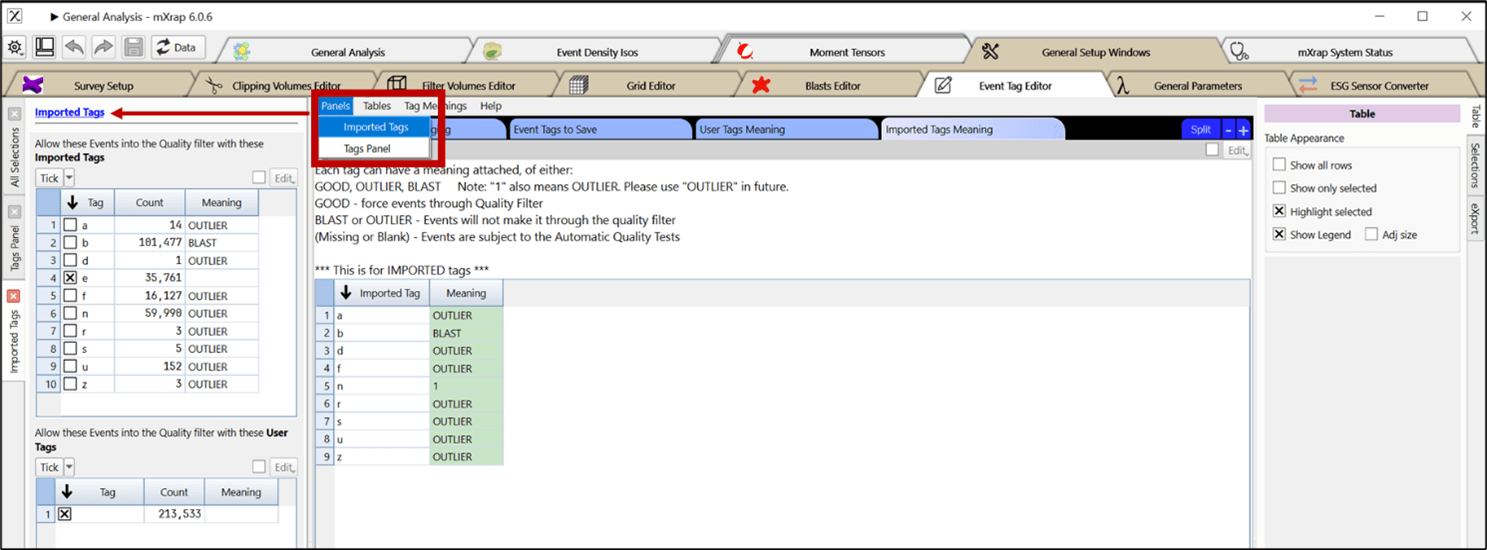
- Open 'Imported Tags' panel to view database tags
- Toggle individual tags on/off for temporary filtering
-
Confirm Changes
- Restart mXrap
- Check events tag filter to verify on/off states
Training Resources
Event tags can be used to group events into categories. Example tags might be 'suspected blast', 'damage occurred', 'suspect location', 'outlier' or 'likely crusher noise'. These tags can be used in event filters to quickly show or hide particular categories.
There are many reasons you might want to store a short snippet of text associated with an event. There are two ways to do this in mXrap; event tags and event comments. Event comments can be unique and about anything, they have no effect on filters.