Filtering Window
Purpose
Select stope and apply filters for analysis. These filters aim to select one or more groups or stopes/faces with consistent conditions.
Steps
- Tick stopes from the prefilter list table. This list limits the amount of data that has to be initially loaded to save time for large databases.
- Tick stopes from the stope database table. These are the stope loaded in the prefilter.
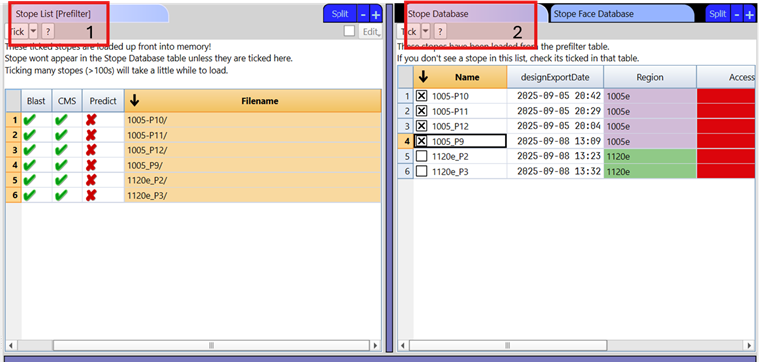
-
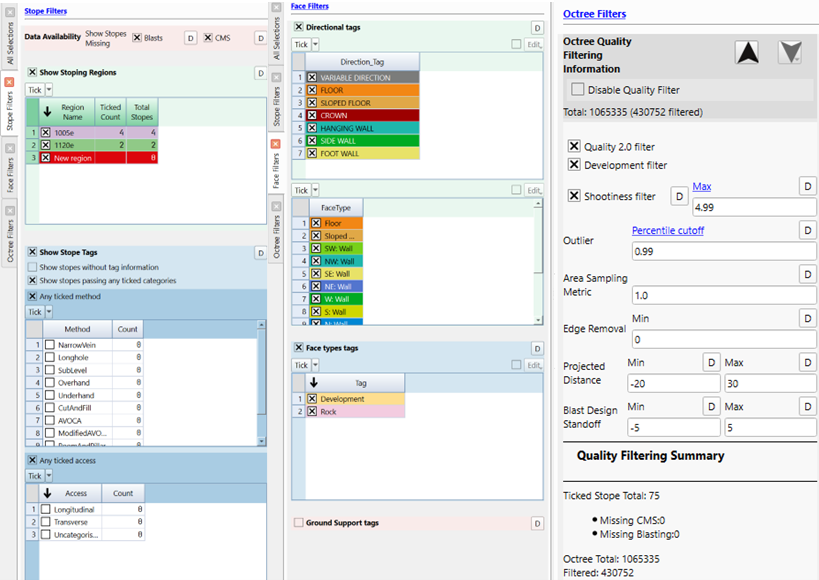
Applied filters:
a. Per stope filters such as region and method, access and sequence tags. Additional filters show stopes missing blast and CMS information
b. Per face filters such as direction, type, and ground support categories c. Per octree filters such as octree quality, octrees in or on developments, edge removal, and limits blast standoff (hover over some of the filters for more information)
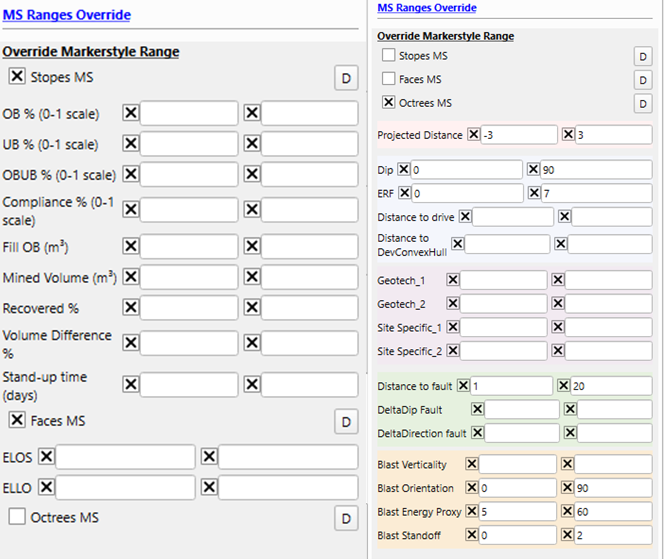
- If needed, Markerstyle ranges can be override for differente parameters at different resolution, allowing to focuse your analysis on specific values and ranges.
- Check filtered data appears as expected in the 3D view.
astuce
Individual stope faces can be included/excluded by using the ticks in the Stope Face Database table
Video
Explains the filtering window layout and tools in the stope reconciliation Analysis App.