Face Detection
Purpose
Group octree blocks into faces with similar geometry. Assign tags for type and direction.
Window Overview
There are two options for defining faces. The automatic tool should face simple geometries while the manual tool might be required for more complex stope shapes.
The octree structure is used to define the faces.
Group octrees into faces with similar orientations.
Once created, faces can be tagged with a face type (e.g., rock, drive, fill).
Octrees associated with drives or backfill faces should be given their own face. Accurate tagging and proper grouping allows for more reliable filtering in analysis.
Automatic Tool
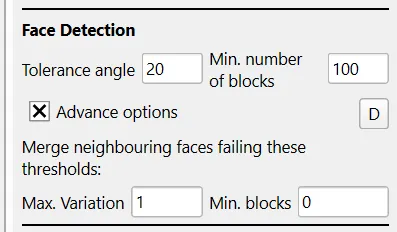
- Tolerance Angle - sharpness to be considered an edge.
- Minimum Blocks - required area to form a face.
- Advanced options:
- Maximum Variation - merge neighbouring faces surpassing an allowable angle variation.
- Neighbouring Faces Min Blocks -area before merging neighbouring faces less than this size.
If the automatic detection gets close, but not quite there. Click Keep Auto Faces and Switch to Manual. Problem faces can be reset and re-faced as required.
Manual Tool
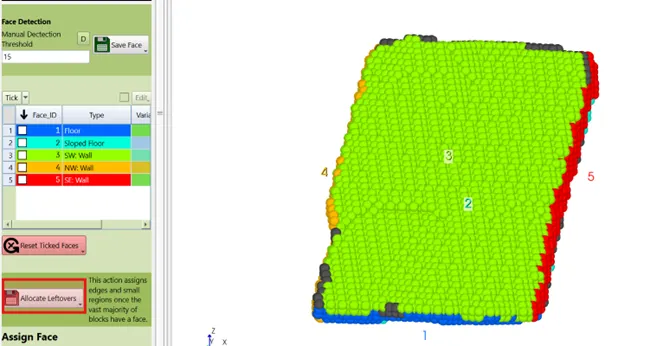
When using the manual face detection to define a face, it is ok to leave a couple of octrees unassigned for speed purpose and use the allocate leftovers function at the end.
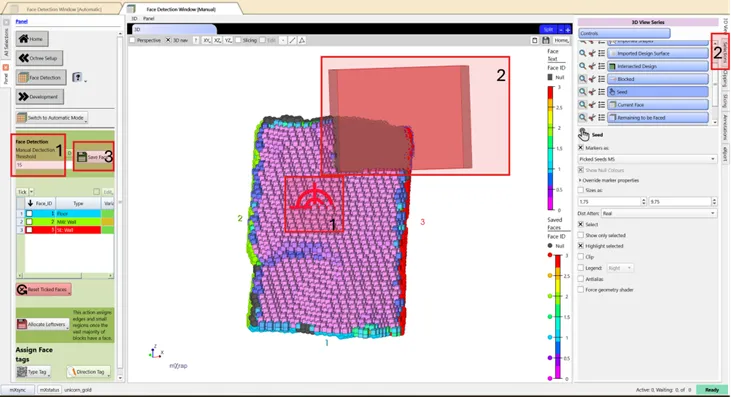
- Use F2 to select octree as a seed point. Faces are flood filled from this seed. The threshold defines edges to limit the fill. CTRL+F2 defines multiple seed points.
- Manual exclusions can be defined using selection boxes to help defined faces.
- After each face is defined, click Save Face.
- Allocate any leftover octrees that have not yet been assign.
- One or more faces can be reset by ticking these faces in the panel, then clicking Reset Ticked Faces.
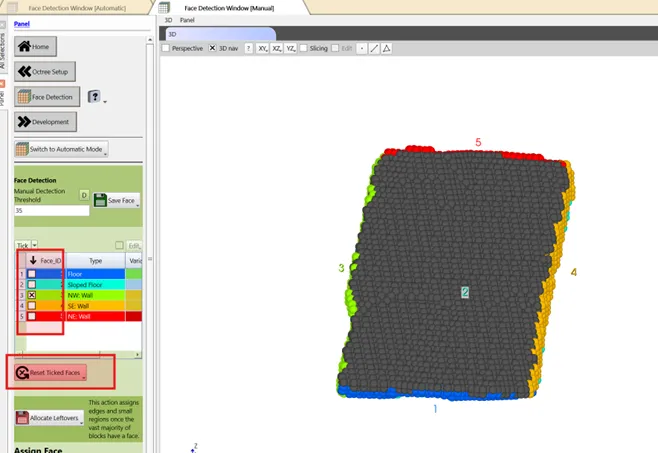
Use the face ID displayed on the face in the 3D view to quickly determine which face you want to reset.
Tag assessment
Face Type
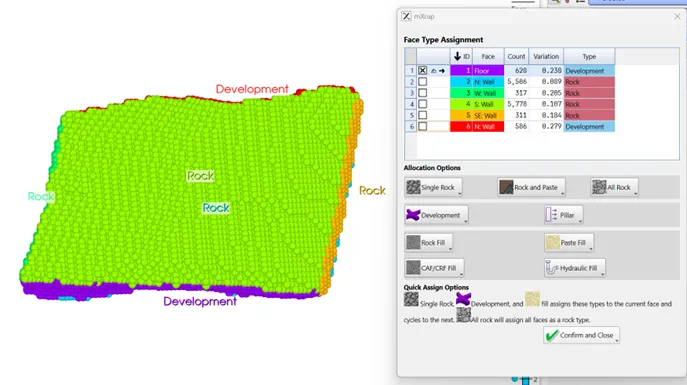
This opens a popup to assign the type of face e.g. rock, drive, fill etc. All rock can be used to initially tag all faces which leaves relatively fewer faces to tag after.
Face Direction
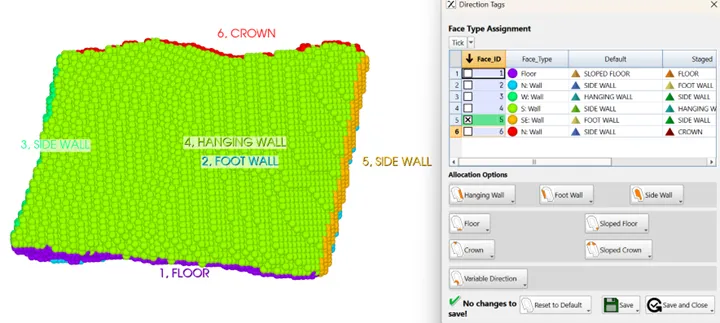
This opens a popup to adjust the direction of face e.g. footwall, crown etc. The general directions can be programmed in the Utilities app so that, for example, the North wall is always tagged as the footwall. This will help if the stopes generally face the same direction.
The text ID can be modified to help with tagging the faces.
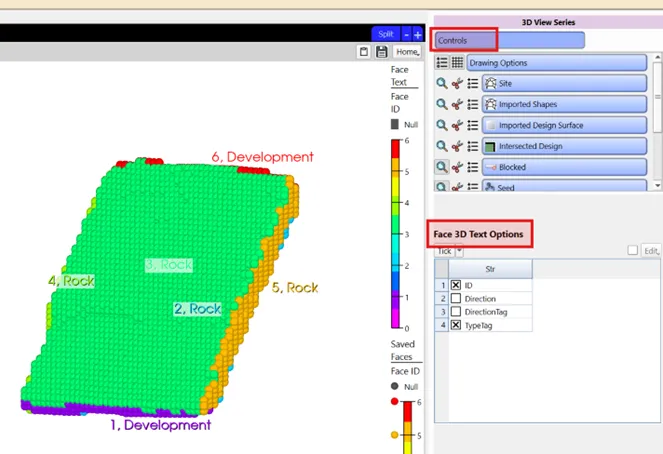
Faces should be accurately tagged for later reliable filtering in analysis.
Type Tags must be assigned to continue.