Project Setup
A block analyser project is made up of a set of DFN parameters, an excavation mesh, and all of the blocks that have been found on the excavation mesh from any DFN realisations generated in the project. In the project setup window you can either select an existing project to continue working with it, or you can create a new project folder and set the DFN parameters and excavation mesh to use in that project.
Select Folder
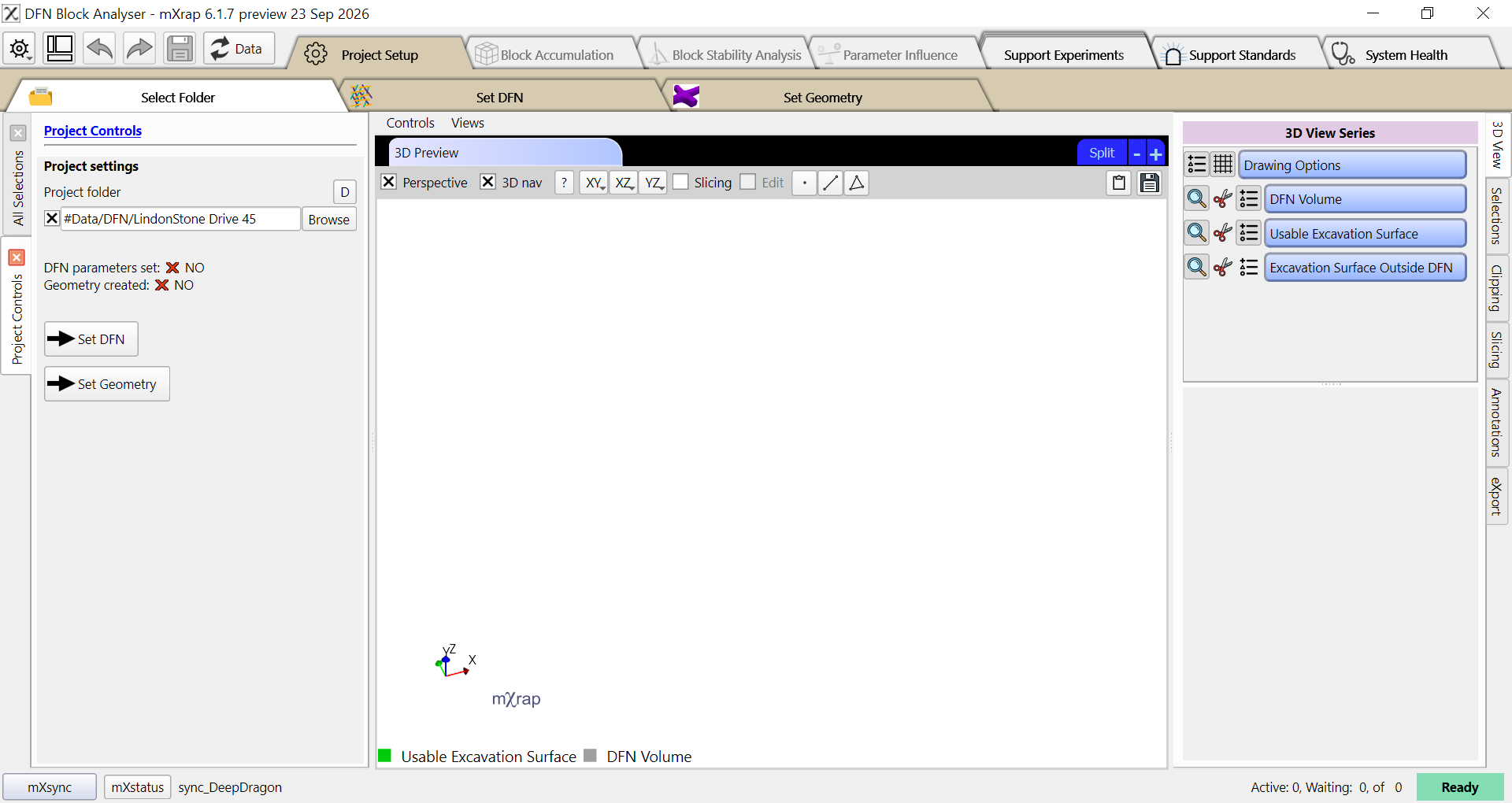
We will start in the Select Folder window. In the control panel on the left, use the Project folder input to select a new folder for your project. You can open the project again at a later date to continue stability analysis using the accumulated blocks.
Set DFN
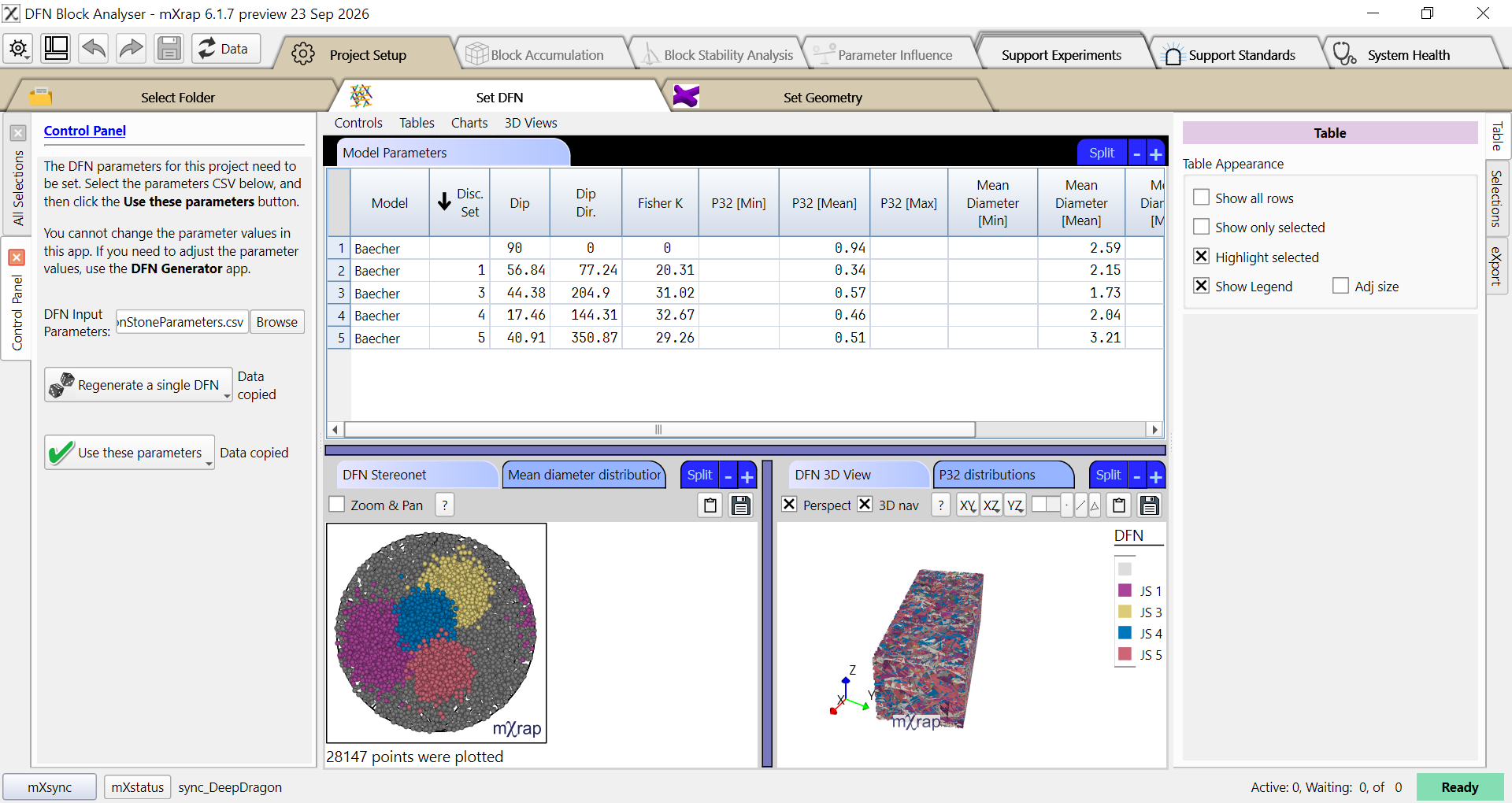
Next we need to set the DFN parameters to use for this project. You can either click the Set DFN button in the control panel or you can click on the Set DFN window tab. Select a calibrated DFN parameters file using the DFN Input Parameters input in the control panel. You will be able to see the chosen parameters in the table at the top of the window, as well as a preview of a generated DFN in the bottom of the window. If you are happy with the chosen parameters click on the Use these parameters button to save them into this project.
Note that DFN parameters cannot be edited in this window. If you need to edit your parameters then you should use the DFN Generator app.
Set Geometry
The next step in our project set up is to define the geometry for the excavation surface that we will analyse, and the volume for generating DFNs. Change to this window by clicking the Set Geometry window tab, or by clicking the Set Geometry button in the Select Folder window's control panel.
The excavation geometry can be based on survey files (e.g. your own designs or asbuilts), or it can be created according to preset shapes: tunnels, circular tunnels, or intersections. In the current version of this app only tunnels (either presets or from surveys) can be used with ground support standards.
For our new project the window should initially look like the image below. Click the Start Geometry Setup button to begin the setup process.
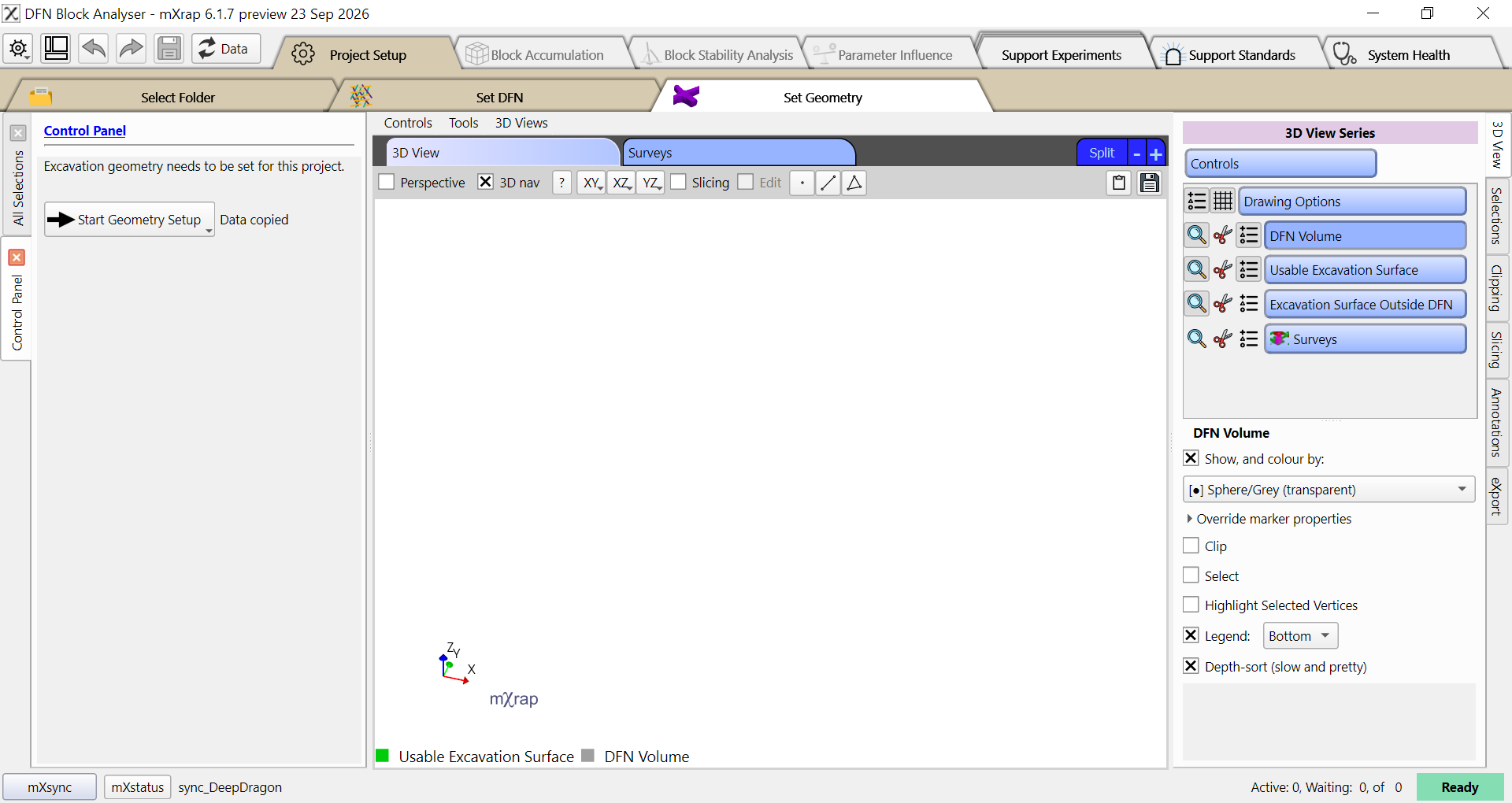
The control panel will then show buttons for the preset shape options and the survey option, as well as inputs for the DFN volume's location, size, and orientation.
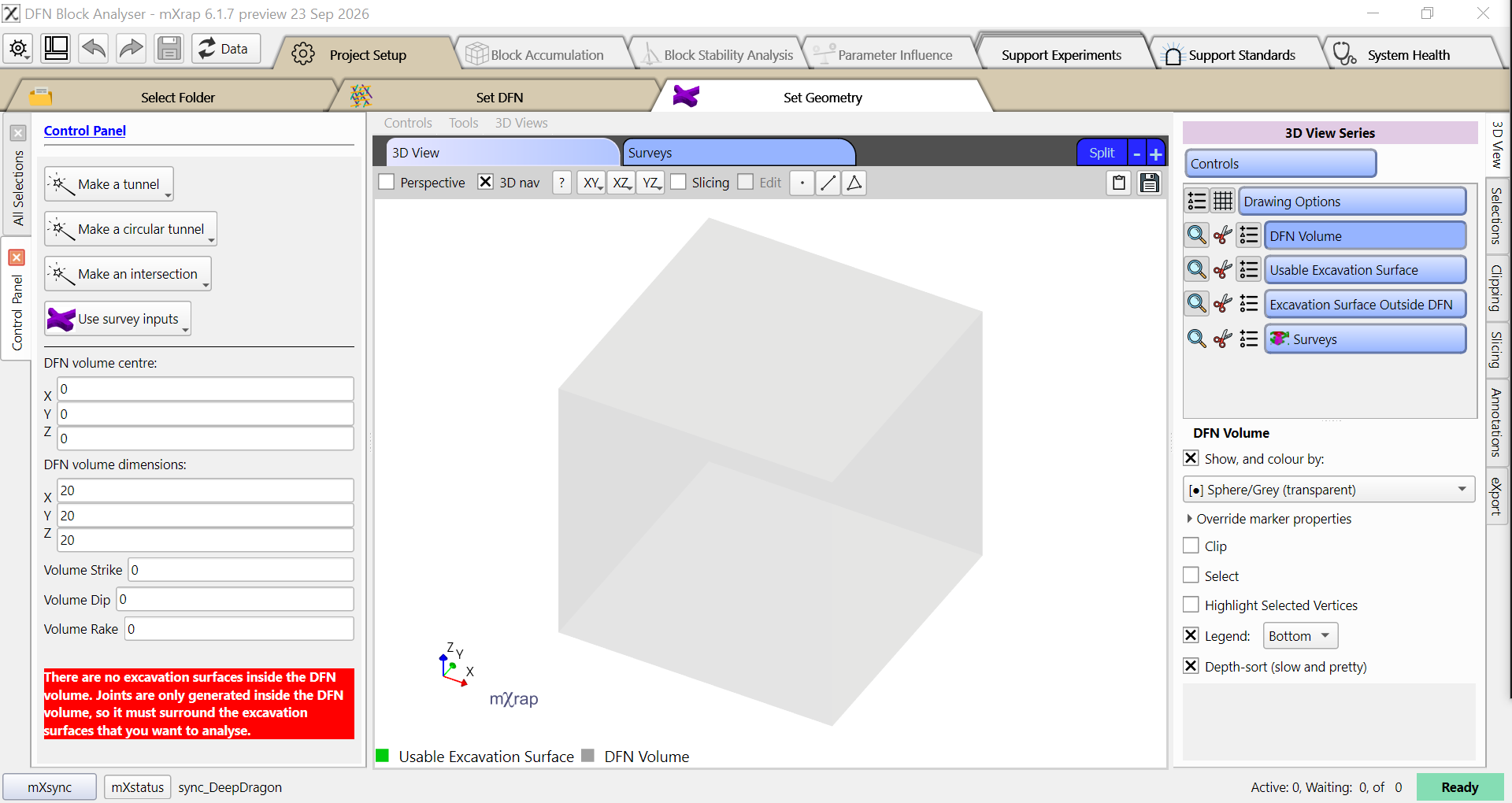
- DFN volume centre specifies the XYZ coordinates for the centre of the DFN volume.
- DFN volume dimensions specifies the size of the DFN volume.
- Volume Strike, Dip, and Rake can be used to rotate the DFN volume.
Predefined excavation geometries
For our project we will click on the tunnel option. The control panel will update to show input parameters for the tunnel geometry, and you should see a preview of the geometry appear in the 3D view. The green geometry indicates surfaces which are inside the DFN volume, and therefore could potentially be intersected by joints in the generated DFNs. The grey geometry is outside the DFN volume and will not contribute to the analysis.
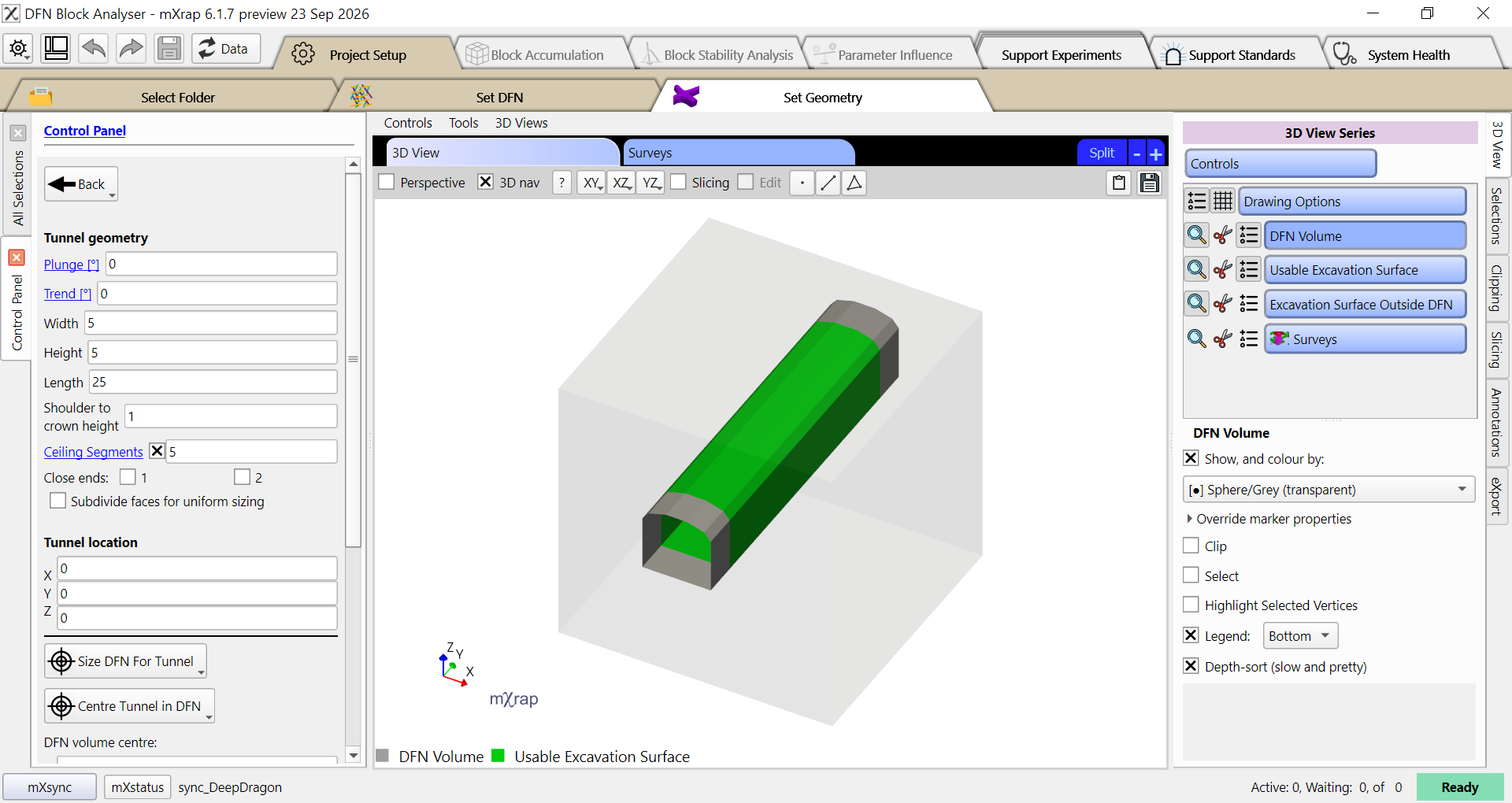
- Plunge defines the plunge of the tunnel (or one axis of the intersection). Plunge is always in the direction of trend.
- Trend defines the trend of the tunnel.
- Width defines the width of the tunnel.
- Height defines the height of the tunnel, from the floor to the crown.
- Length defines the length of the tunnel.
- Shoulder to crown height is used for creating arched backs. It specifies the height of the arch.
- Ceiling segments specifies the number of segments used when creating arched backs. More segments will create a smoother arch, but will increase the processing time of block accumulation.
- Close ends controls whether the end of the tunnel is closed or open. If a tunnel has a closed end that is within the DFN volume, then blocks may accumulate on the end. This may be useful if you wish to analyse block formation on the face, but there are limited tools for this analysis at this time.
- Subdivide faces for uniform sizing we recommend turning this option off for the block analyser. The subdivision of faces will increase the processing time of block accumulation, and provides no benefit for this application.
- Tunnel location specifies the coordinates of the centre of the floor of the tunnel.
We will set our tunnel's trend to 45°,
then click the Size DFN For Tunnel button to quickly resize DFN volume and
place the tunnel in the middle of the volume.
This button usually provides a reasonable default,
but you may wish to customise the DFN location or volume according to your use case.
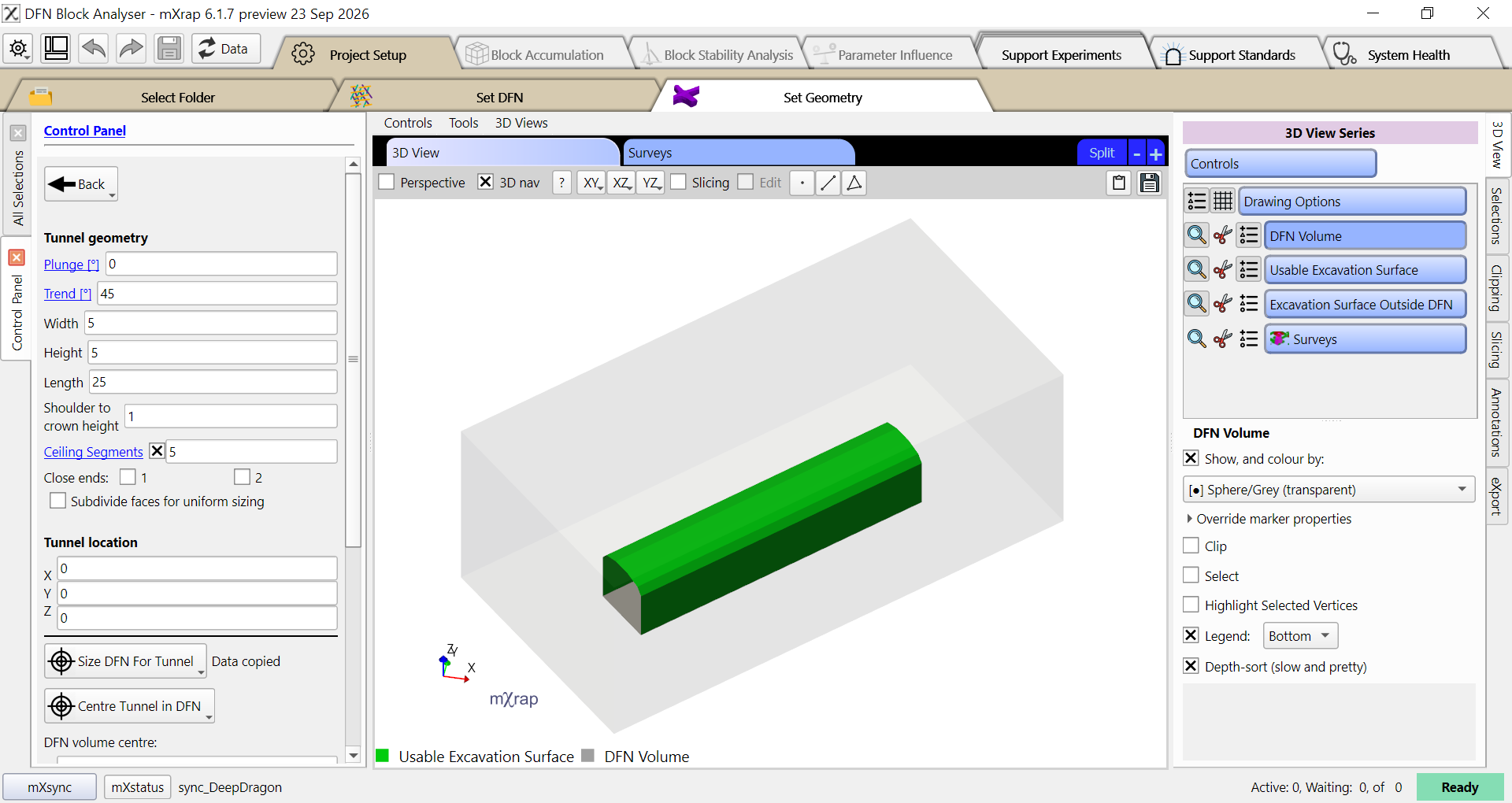
Joints are only generated within the DFN volume, so the DFN volume must extend far enough around your excavation surface to capture the largest blocks that you could anticipate. Note that the edge effect of joint generation is already mitigated by the DFN generator, so you do not need to oversize your DFN volume to account for edge effects. The larger the DFN volume is, the more time that DFN generation will take and the more time that block finding will take.
Excavation geometry from survey inputs
If we instead click on the Use survey inputs button
then the control panel will update to show you settings
for selecting a survey, clipping, and optionally remeshing the survey.
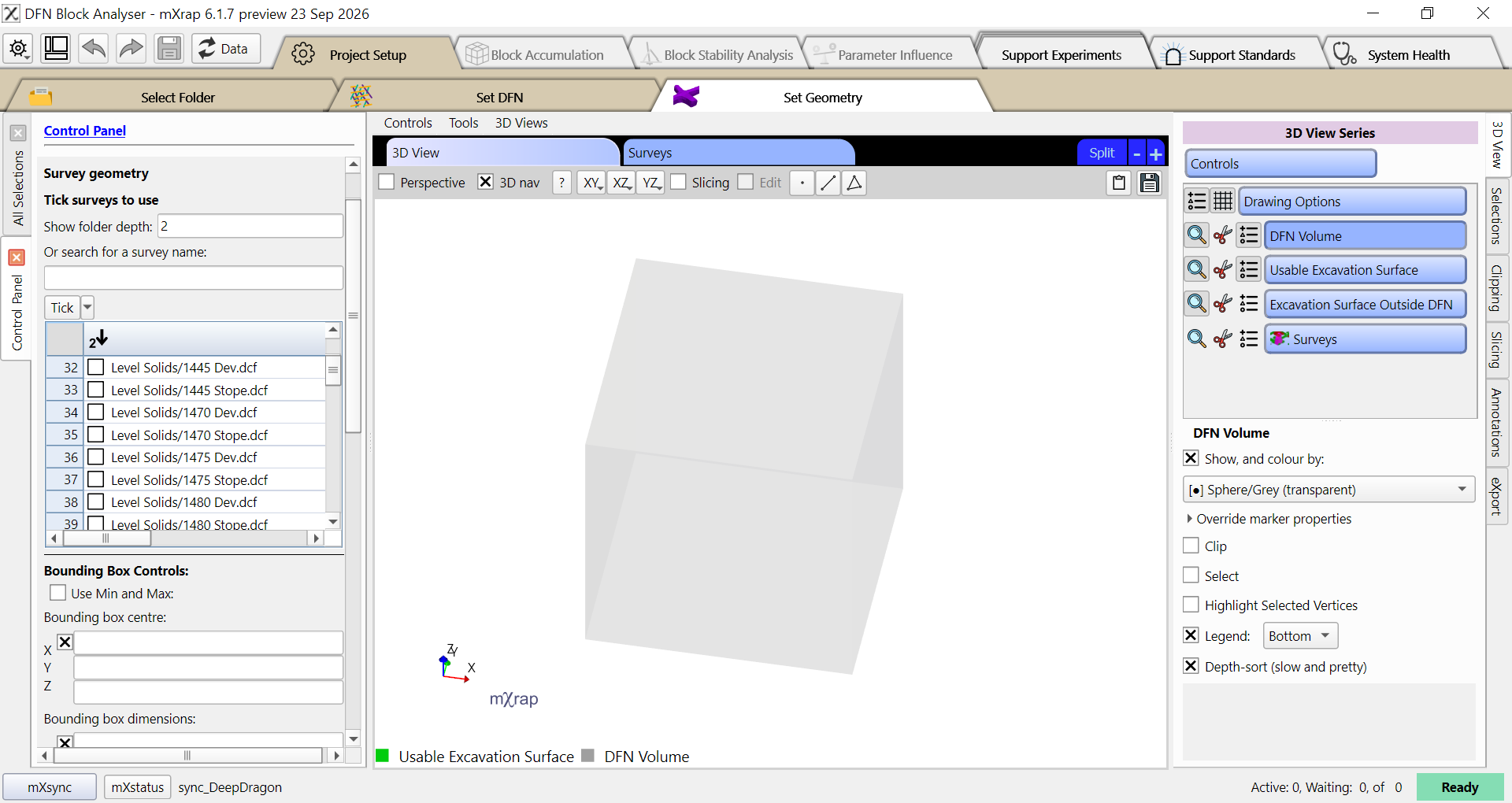
It is generally easiest to position our DFN volume on our survey first,
and then to set the survey clipping options by clicking the
Set survey bounding box from DFN volume button.
First, in the 3D View Series controls turn off the DFN Volume series
and turn on the Surveys series.
In the Surveys series options, tick the survey that you want to use.
Then click on the 3D View and press the R button to reset the view.
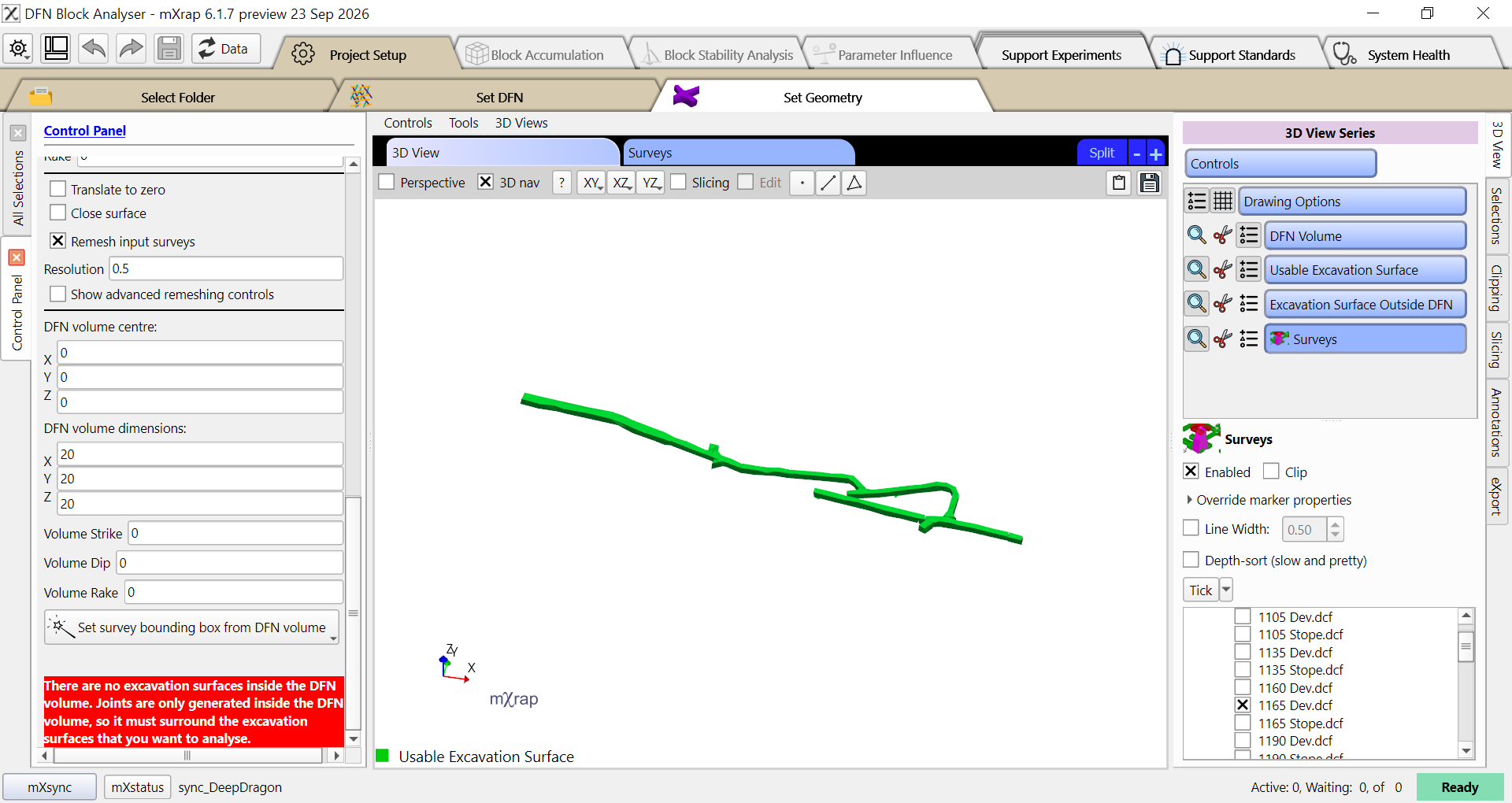
You should now be able to see your surveys. You can zoom in to an area of interest by hovering the mouse over a point on the surveys and pressing the F key. Once you have found an area of interest, we want to position the DFN volume there. There are two convenient ways to find the coordinates:
- Using the annotations tool, place a point on the survey and then read the coordinates of that point.
- Turn off Perspective in the 3D view, then use the XY, XZ, YZ buttons to align the view so that you can read the coordinates from the grid.
We are going to use the annotations tool.
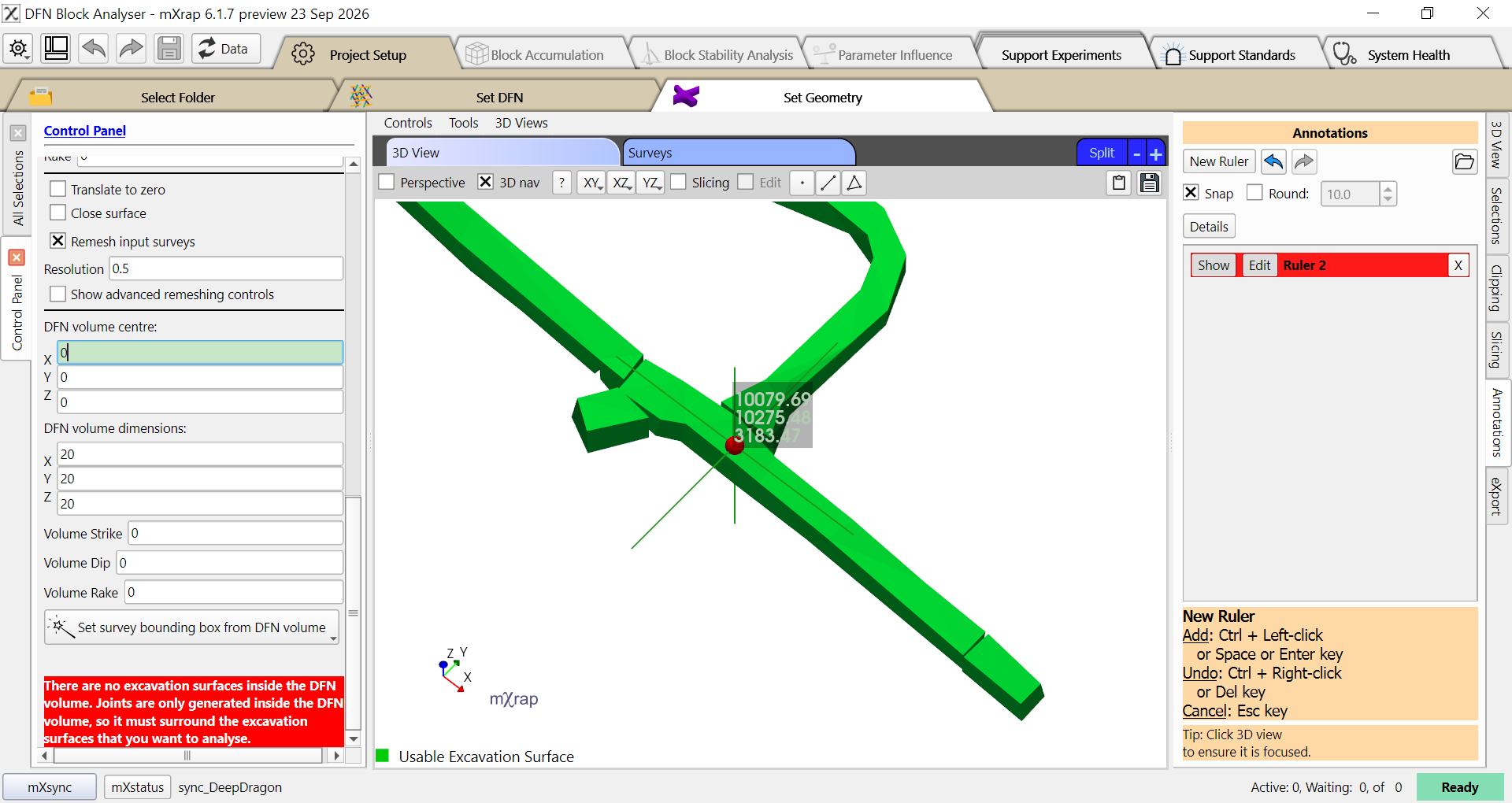
After you have entered the DFN volume centre in the control panel, turn the DFN Volume series in the 3D view back on. You should be able to see the grey box of the volume drawn around your centre point.
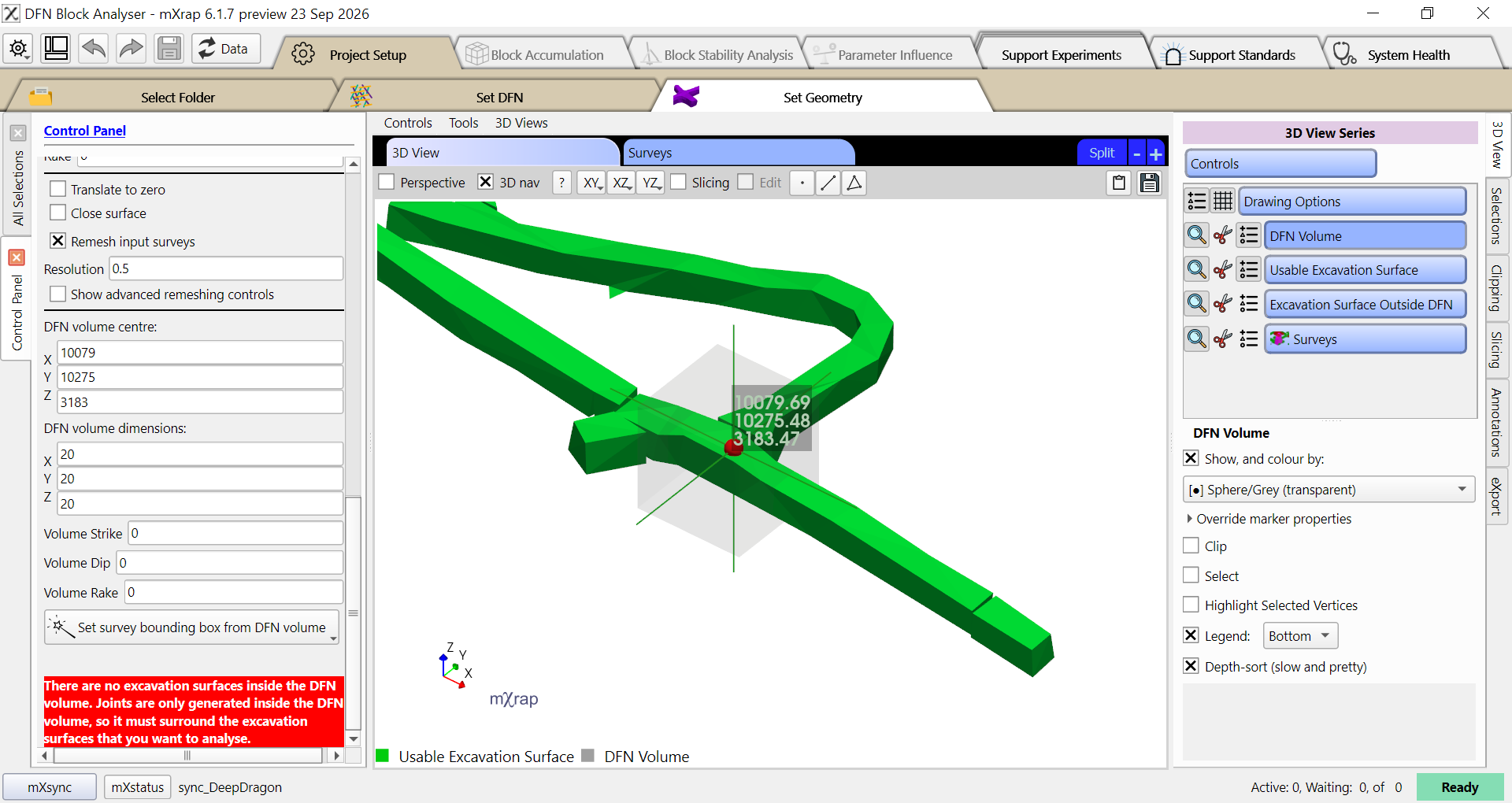
We can now make some small adjustments to the DFN volume centre, dimensions, and orientations. The 3D view will update automatically so that we can easily adjust the volume until we are happy.
Next we will click the Set survey bounding box from DFN volume button. This will fill in the values in the Bounding Box Controls section of the control panel. Then we will turn off the Surveys series, and tick the same survey in the survey list in the control panel.
If your surveys have quality issues such as internal surfaces, holes, self-intersections, or non-manifold topology then they will cause problems with the block-finding process. Our surveys are not good for block-finding because they have gaps, as shown in the image below, as well as internal surfaces.
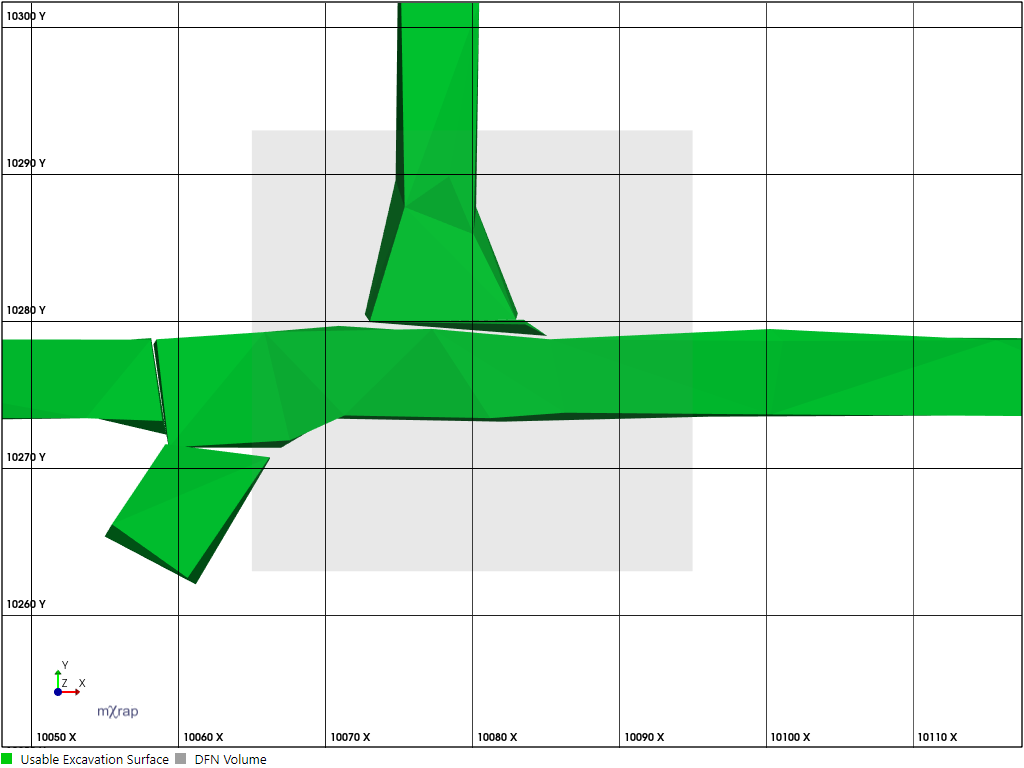
There is an integrated remeshing option which can fix some of these problems. To enable it, tick the Remesh input surveys option in the control panel. In our case we need to turn the remesh resolution up to 1.0 so that it can bridge the size of the gap in these surveys. After that we can see a good quality continuous mesh is produced.
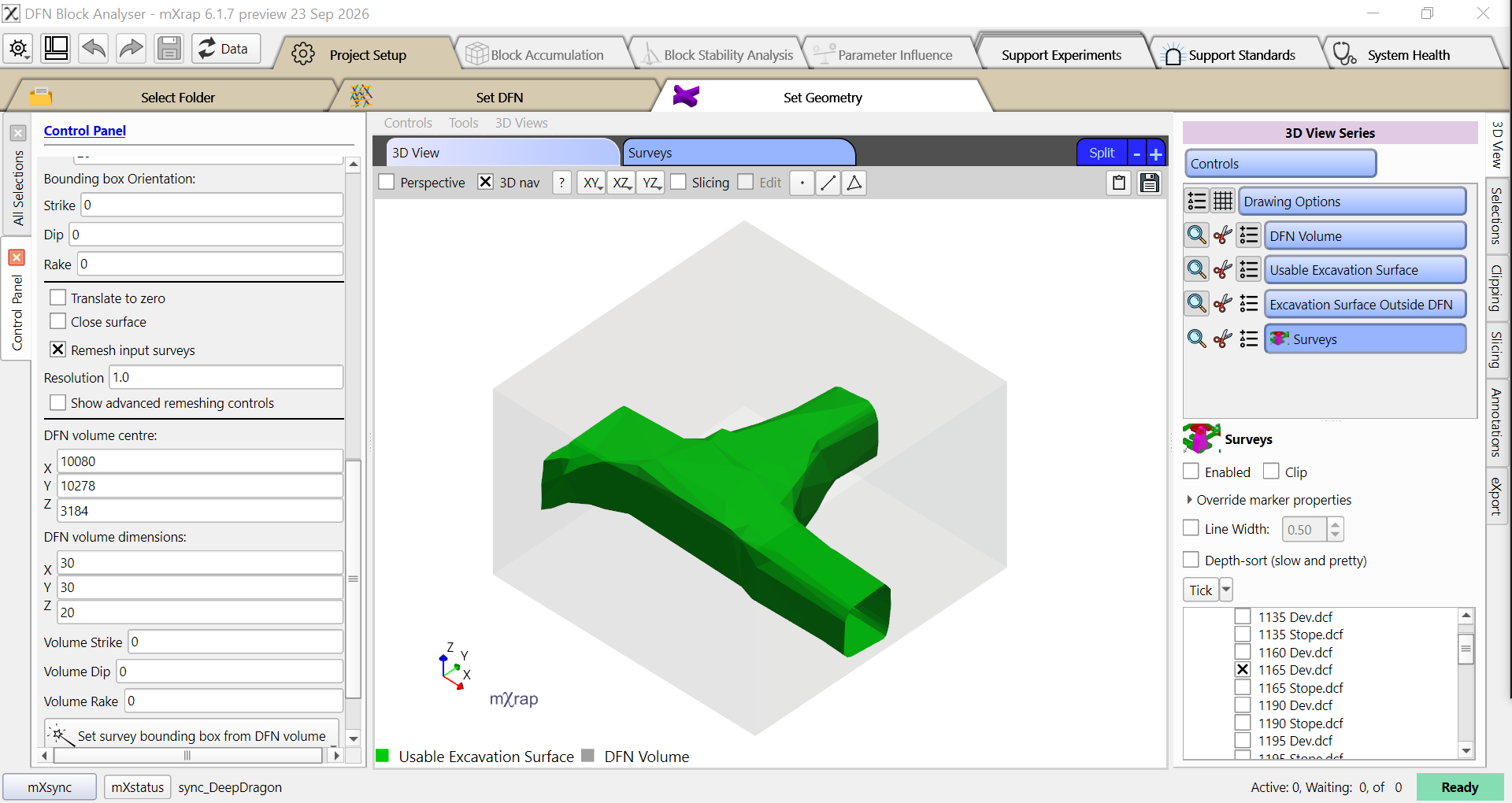
If the remesher fails or there are still quality issues then you will need to correct your input surveys in external software.
Saving the geometry
When you have finished setting up your geometry and DFN volume, click the Use this excavation geometry button to save those settings into your project folder. Note that the saved geometry and volume can never be removed from a project, if you want to change the geometry then you will need to create a new project.
Project setup complete
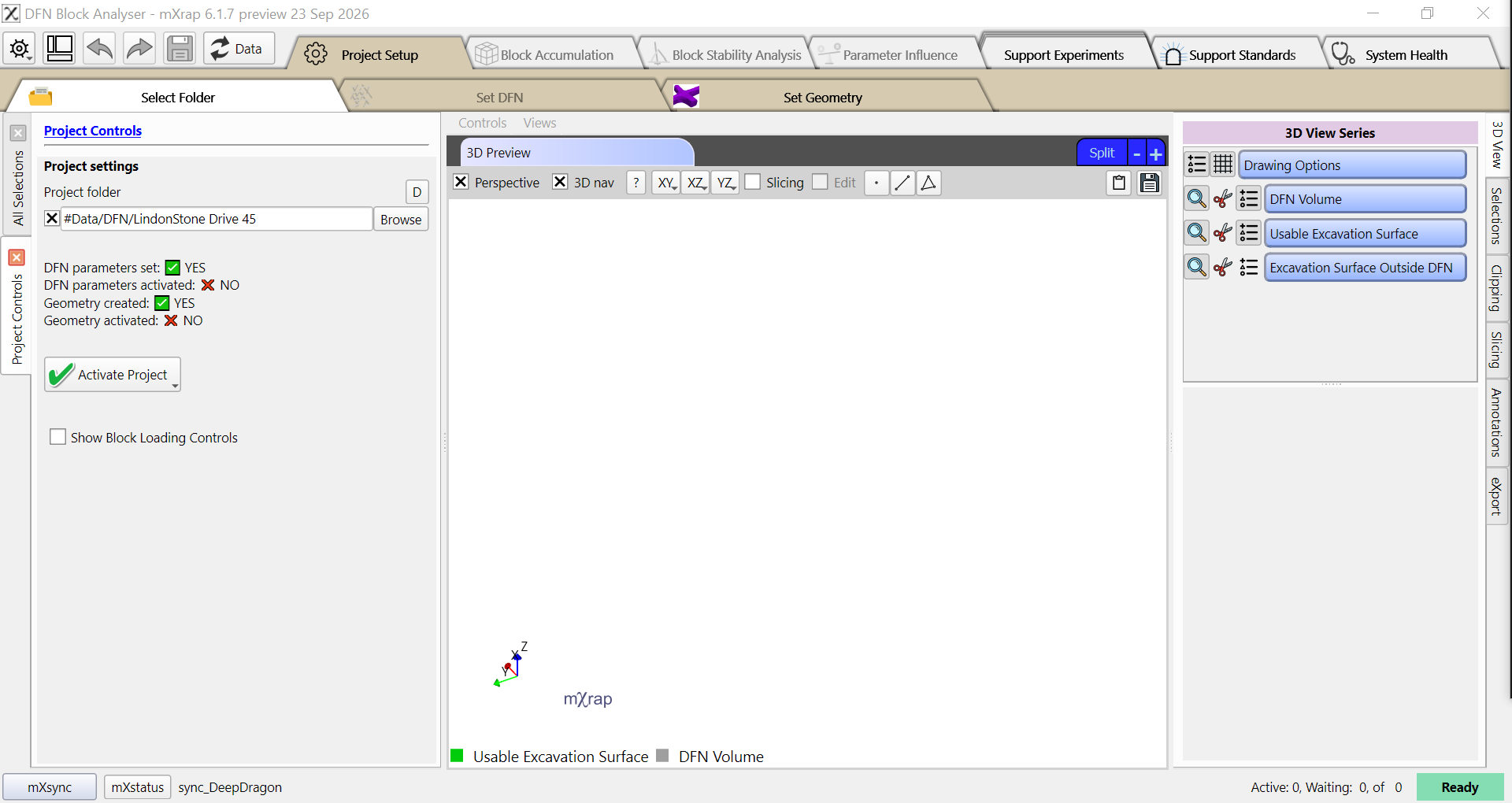
Now that the DFN parameters and geometry have been saved into the project you should see the following in the Select Folder window.
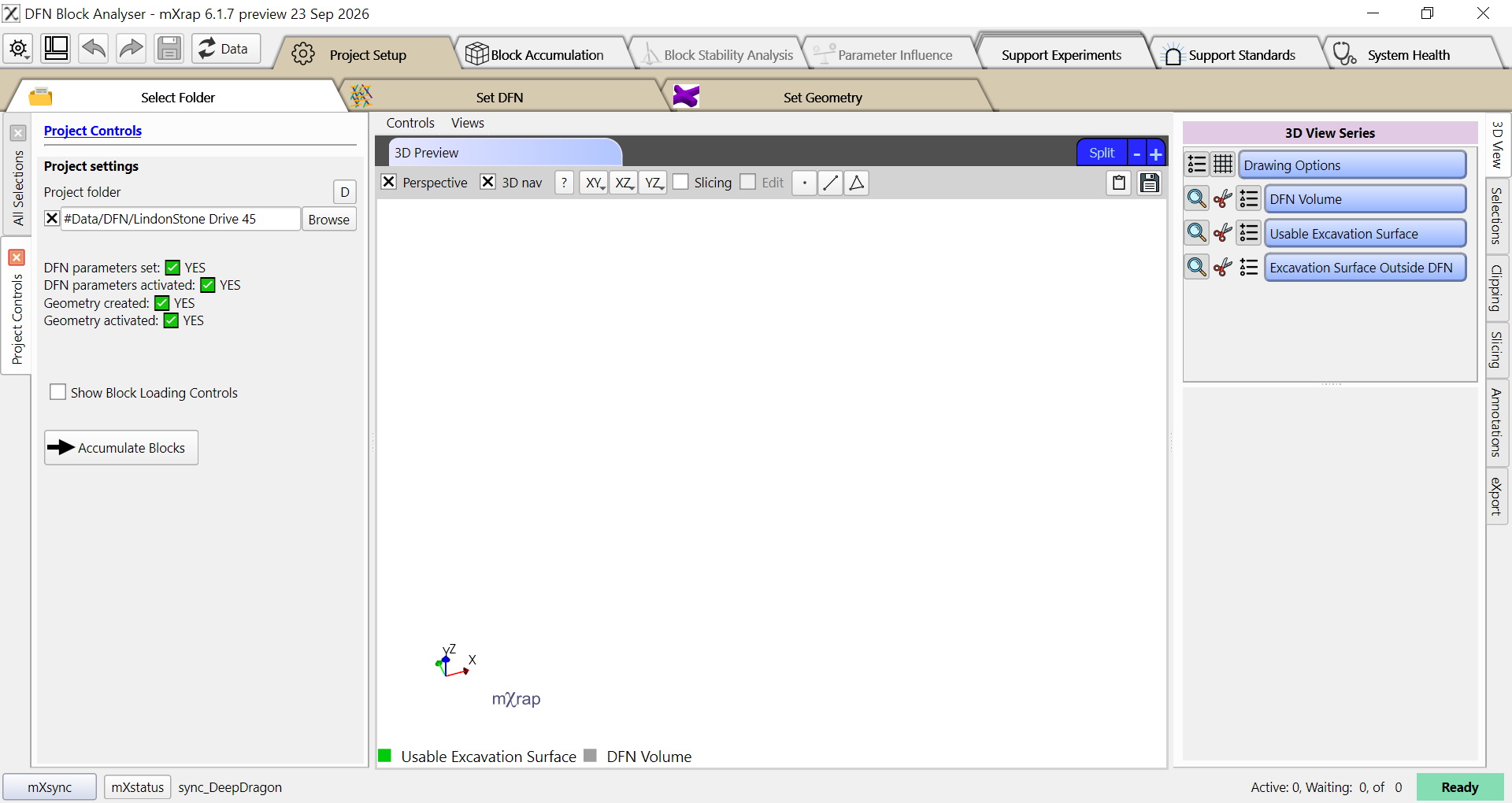
You can click the Accumulate Blocks button or click on the Block Accumulation window tab to move on to the next step in the process.
If you open this project again later, or change to a different project, then you should see the below screen. The ticks next to DFN parameters set and Geometry created indicate that these have been saved into the project, we just need to click on the Activate Project button to load these so that we can continue to block accumulation or block stability analysis.