Build Model
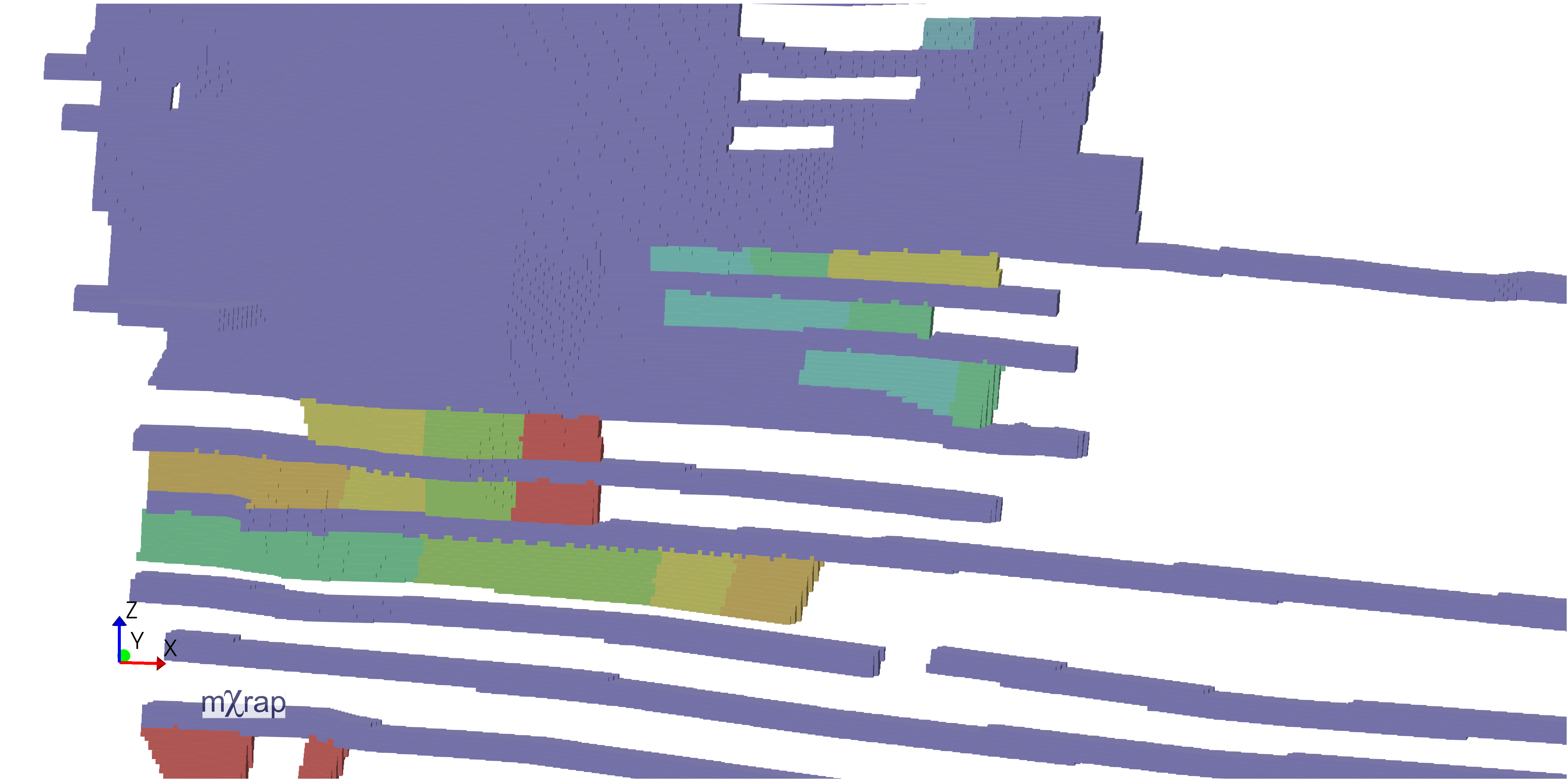
Build models from the previously built steps. Models are created by merging multiple steps of the same resolution in chronological order. The model building process automatically handles the complex interactions between excavations over time.
Best practice
- Build separate models for different resolutions
- Select only the steps needed for your specific analysis
- Monitor processing progress for large models
- Verify model results in the viewing window before exporting
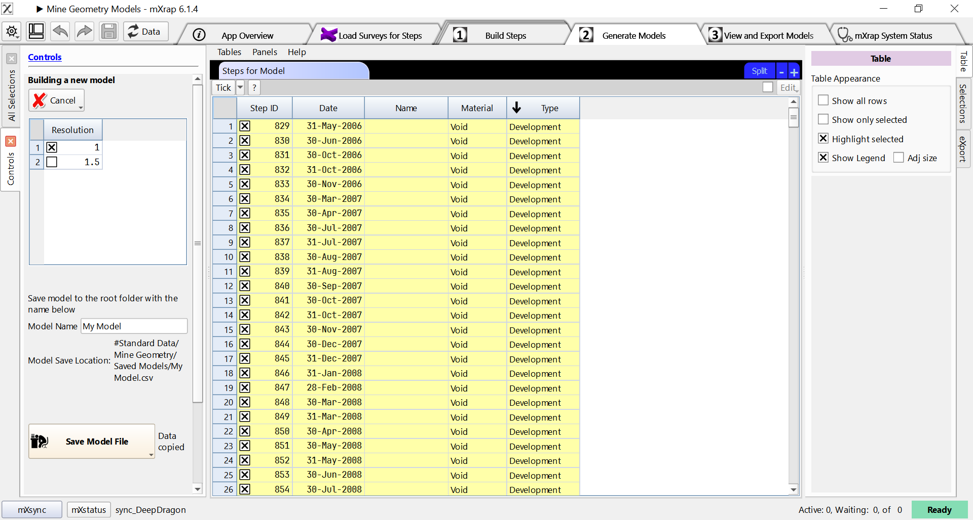
First, Go into the Generate Models Window and click on the Creat a New Model button.


Step 1 - Resolution Grouping
- You can only build models using steps of the same resolution.
- The app displays all available resolutions based on your saved steps.
- Select a resolution to view all steps created at that resolution.
Best practice
- Build separate models for different resolutions
Step 2 - Chronological Processing
The model builder processes steps in ascending date order:
- Processes the earliest step first
- Adds subsequent steps chronologically
- Determines what volumes need to be added or merged
- Continues until all selected steps are processed
Best practice
- Select only the steps needed for your specific analysis
- Monitor processing progress for large models
remarque
The blue line indicates the currently processing step, while green lines show already processed steps.
Step 3 - Model Naming and Storage
When saving a model:
- Provide a descriptive name (e.g., "All Mine 2m")
- The app shows the save location (ROOT/#Standard Data folder/Mine Geometry Model)
- Processing time depends on the number of steps and their size
- The app automatically switches to the viewing window when complete
Video
Build models from the previously built steps. The model building process occurs by ordering dates to work out the merging and construction process.
danger
Troubleshooting
Problem: Model results don't match expectations
- Verify step dates are correct and in proper chronological order
- Check that Type and Material attributes are set correctly
- Review intersection handling for steps with different attributes
- Ensure all steps use the same resolution
Problem: Steps are missing from the model
- Confirm steps are selected (ticked) in the step list
- Verify the resolution matches the model being built
- Check that step dates fall within the expected range