Online licence setup
You will need
- Licence ID
- Passcode
These will have been provided during the initial deployment stage - ask your site mXrap contact, or get in touch.
Install mXrap
-
Head to Downloads and download the necessary installers. You will need mXrap and CodeMeterRuntime to start using mXrap. The username and password to access the downloads will have been sent to you during setup - email if you don't have them.
-
Install CodeMeterRuntime.exe. This small application will allow your PC to communicate with the mXrap licence servers. The installation options should be left as default.
This step requires local admin access.
- Install mXrap with the default installation options. This does not require admin privileges and installs to
%localappdata%. This will install 3 new applications, which can be found in the Start Menu.
- mXrap
- About mXrap
- mXsync
Add your Online licence
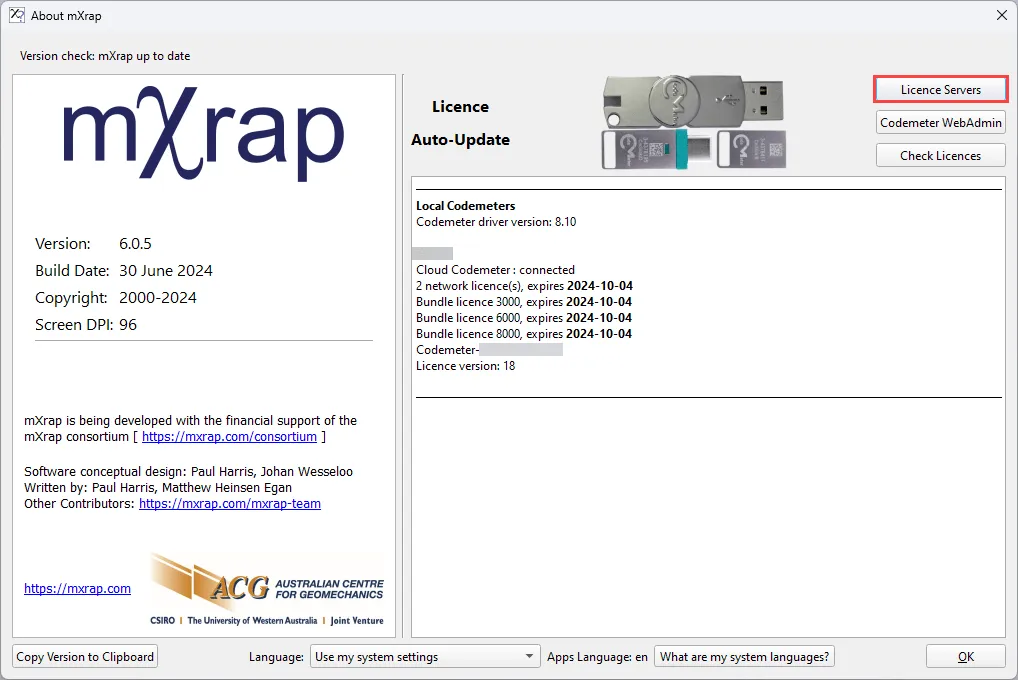
- Open 'About mXrap' from the Start Menu and click 'Licence Servers'.
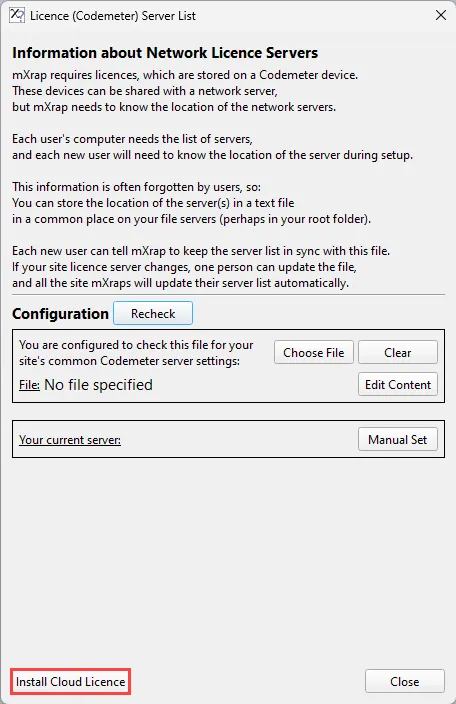
- Click "Install Online Licence"
- Enter your 4-digit online ID.

- Enter your first 6-digit passcode.

- Enter your email address. It will only be used for this purpose, so you can use the one you have easiest access to.

You will receive an email from which looks like the below. Please check your junk folder or email quarantine if it has not arrived within 5 minutes.
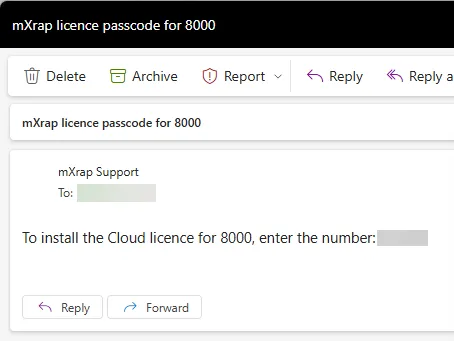
- Enter the second one-time 6-digit passcode sent to your email.

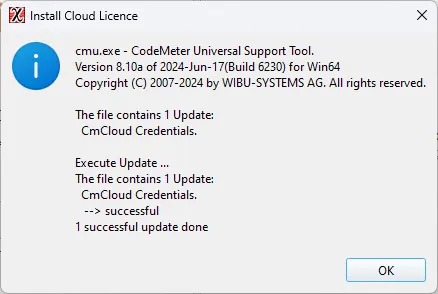
- CodeMeter will briefly communicate with our server to register your licence. The below dialog will be shown if it is successful.
Troubleshooting
Refer to our Troubleshooting Licence Issues guide. If you still can't access mXrap, email us at with any relevant screenshots or error logs.