Updating levels
The system will automatically try to determine which levels require updating. This is based on the contents of the surveys used for the level: if the contents of the imported surveys change, even due to changing the decimation or clean-up options in the survey import tool, then the level will be flagged as requiring an update.
Automatic updates
When a level is created or updated, all of the survey ticks used for that level are saved. If the ticked surveys and folders are still in your survey cache, then the level can be updated automatically. All levels which need updates and can be updated automatically will be listed in the table at the top of the window, Levels for automatic update.
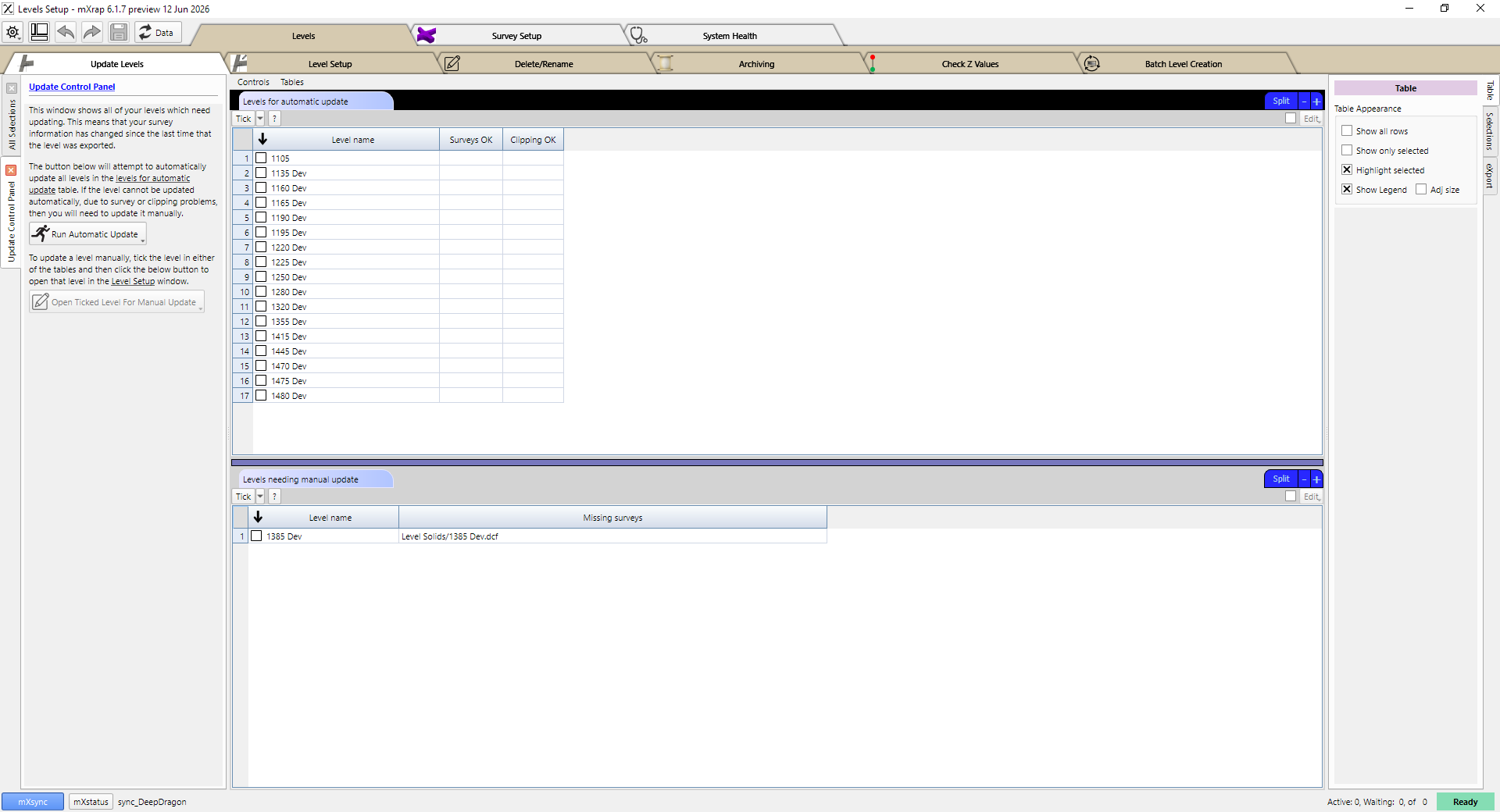
Start the automatic update process by clicking the Run Automatic Update button in the control panel on the left. The system will update one level at a time. The level it is currently updating will be highlighted in the list, as shown in the image below. When a level is finished updating, it will be removed from the list.
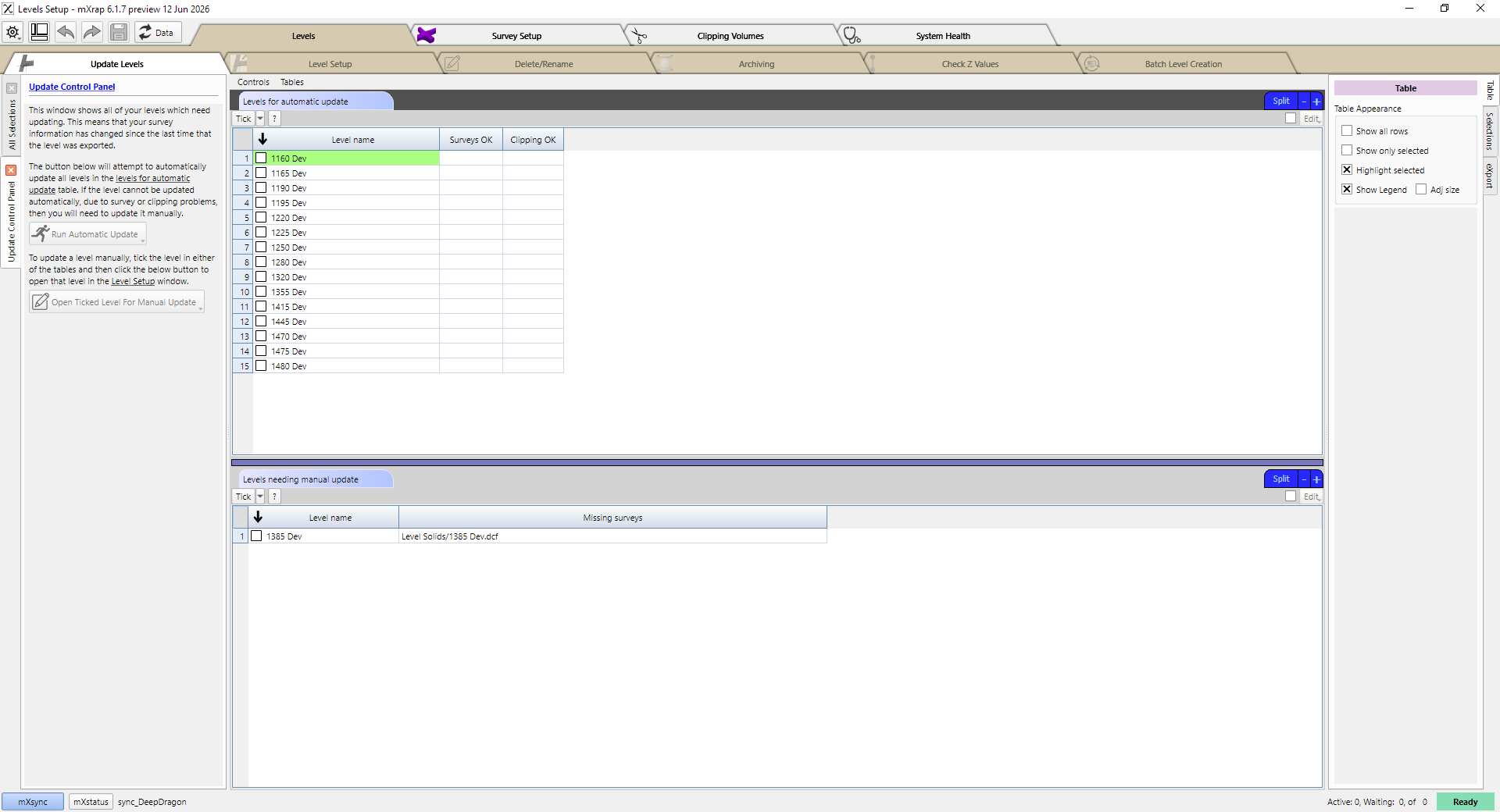
The other windows in the level app will be locked during the automatic update process, but feel free to use different mXrap apps while it works.
If there are problems when updating a particular level, a red cross will appear in the Surveys OK or Clipping OK column, and the process will continue from the next level. After the automatic processing is complete, you can diagnose and correct the problems by ticking on the level and then clicking the Open Ticked Level For Manual Update button. This will open the level in the Level Setup window.
Manual updates
At the bottom of the Update Levels window, you will see a list of levels which require a manual update. This usually means that one of the ticked surveys used in this level is no longer in your survey list, perhaps because the survey has been moved, its name has changed, or it has been deleted. To update one of these levels, tick the level in the table and then click the Open Ticked Level For Manual Update button. This will open the level in the Level Setup window.
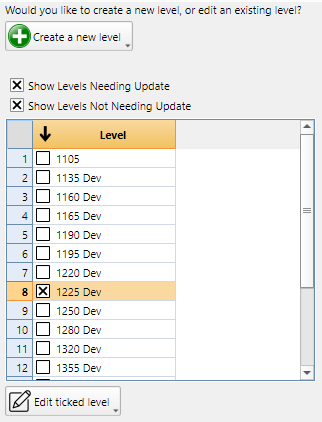
Sometimes you might want to update a level even when the survey contents haven't changed. You can do this in the Level Setup window. In the control panel on the left, tick the Show Levels Not Needing Update checkbox. Then, tick the level that you want to update and click the Edit ticked level button.