Economic
Purpose
Perform economic analysis. This requires an economic block model to provide values which can be referenced by octrees. Please contact support if you would like to have it set up.
Steps
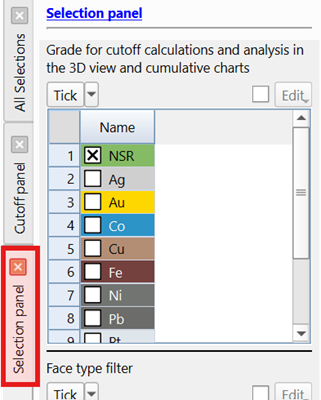
- Tick relevant metals for the mine
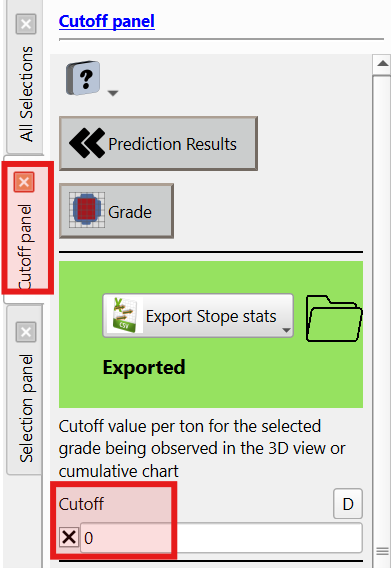
- Set cutoff grade and metal.
- 3D view, charts, tables and panel expressing economic results
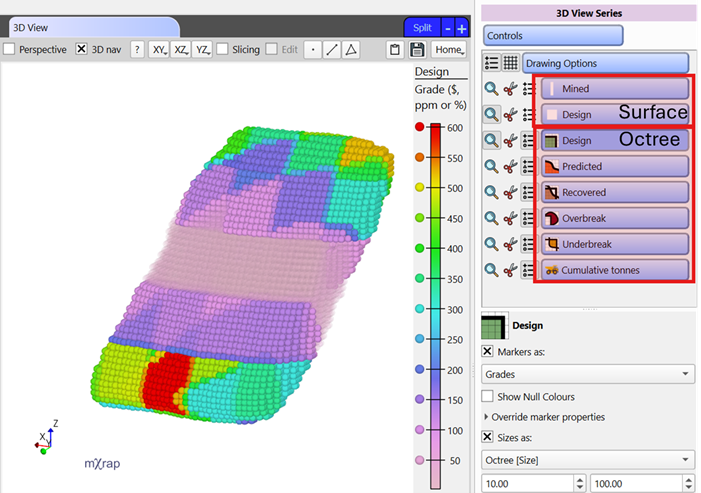
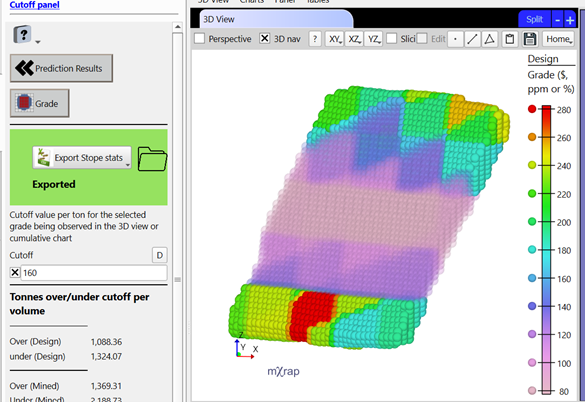
- 3D view - You can visualise the design and predicted shapes as well as the octree series for the different volumes (design, predicted, recovered, OB and UB) and cumulative tonnes (refers to the cumulative charts). You can use the grade marker style to visualise the spatial distribution of your grade in the different volumes.
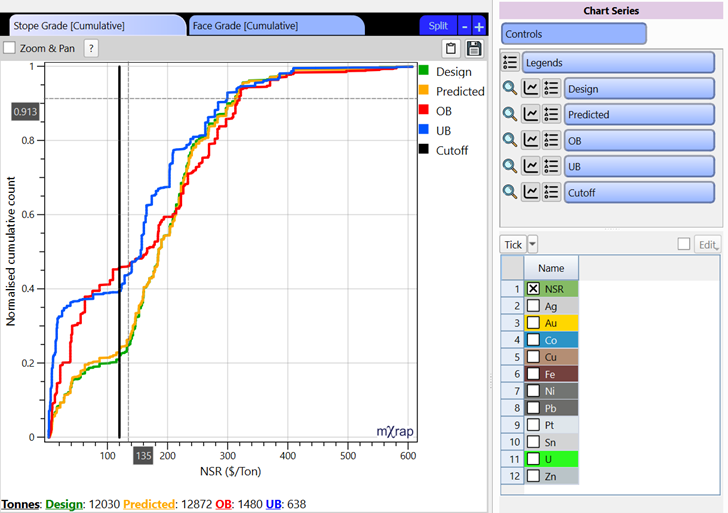
- Charts - A cumulative chart of the tonnes from the different volumes based on the selected grade is used to visualise the distribution of the grade within the different volumes. This is generated per stope or per face. The black line represents the cutoff value used to help with evaluating dilution and loss of ore. The total tonnes for each volume are listed in the footer.
- Tables - The tables are used for summarising the economic performance per face or per stope.
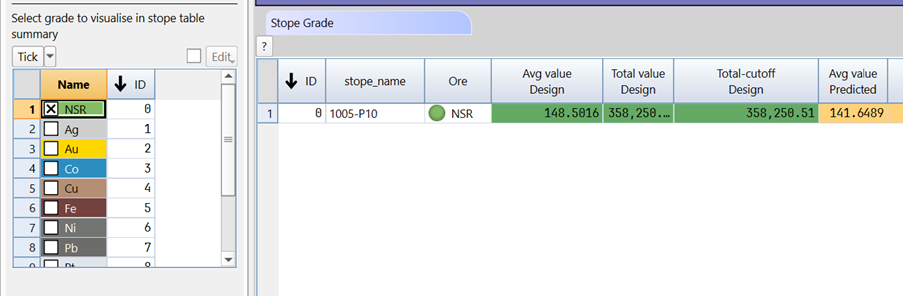
- Per stope: There are three columns per volume type for summarizing the grade.
- Average value:
- Total value:
- Total - cutoff:
- Per face: There are separate tables per OB and UB as well as per average values and total values
- Avg tables: Gives the average values of the different metals for the OB or UB.
- Sum tables: Gives the total values of the different metals for the OB or UB as well as Tonnes over/under cutoff, and the unplanned dilution or loss of ore.
- Per stope: There are three columns per volume type for summarizing the grade.
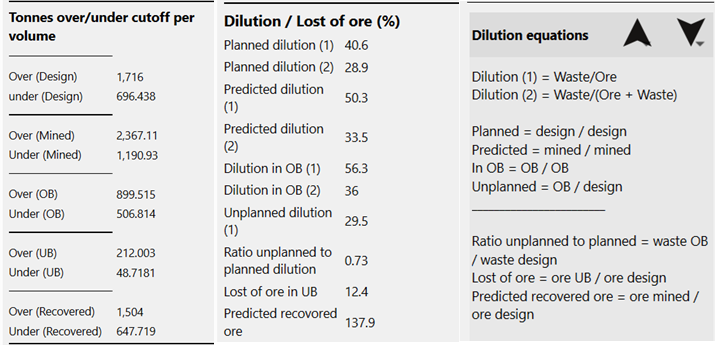
- Cutoff panel - The cutoff panel gives a summary per stope of the Tonnes over/under cutoff for the different volume types as well as the dilution and loss of ore. The equations can be shown underneath.
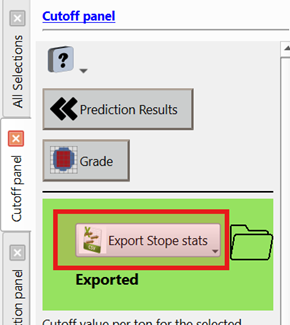
- Export Grade Information.
- The file will be in
#Standard Data/Stope Reconciliation/Databases/Stopes/name of the stope you are predicting/PredictionResults/PredictionSummary.csv
- The file will be in
astuce
You can filter which metal you want to see in the stope grade summary table by selecting them in the selection panel.
astuce
Grade below cut-off will be transparent in the 3D view to help identify areas where dilution will occur.
remarque
This information is exported to a csv and due to the sensitive nature of this data, it is not associated with the stope database.
Video
Explains the Economic window layout and tools in the stope reconciliation Prediction Module.